

From activation to a finished website in 8 steps
Activate Canvas and the wizard opens. It takes the licence, imports the demo you pick, installs what that demo needs and names the site, so the first page you open is a finished page with real content in it.
It opens on activation, and it waits for you
The wizard is a guide, not a gate. Every step can be skipped, every step can be revisited, and nothing it does to your website is one-way.
Opens on activation
Switch the theme on and the wizard is the first thing you see, with the 8 steps named along the top so nothing about the process is a surprise.
Reopen it any time
It lives in the WordPress admin menu under Canvas, Setup Wizard. Come back to activate a key, import a demo or finish a step you jumped over on the first pass.
Nothing is destructive
Your existing pages and posts are never overwritten, the import only starts when you press start, and the whole of it can be rolled back afterwards from Canvas, Demo Import.
The 8 steps
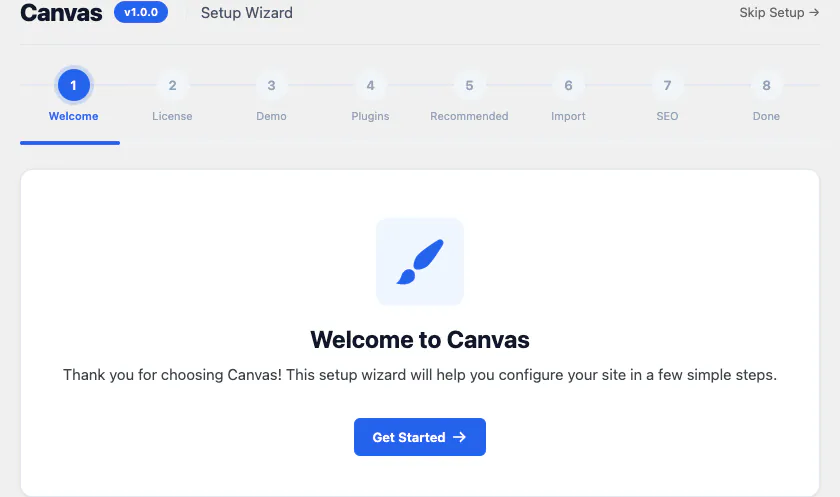
Step 1 of 8: Open the wizard, or leave it for later
Activate Canvas and the wizard opens on its own. A progress rail across the top names all 8 steps, ticks the ones behind you and greys out the ones ahead, so you always know how much is left.
The welcome step asks for nothing. It exists so you see the shape of the setup before committing to any of it.
What you decide
- Start now, or use Skip Setup in the corner and get on with your day
- Nothing on your website has changed at this point
Skipping closes nothing behind you. The wizard stays in the admin menu under Canvas, Setup Wizard, and picks up wherever you left it.
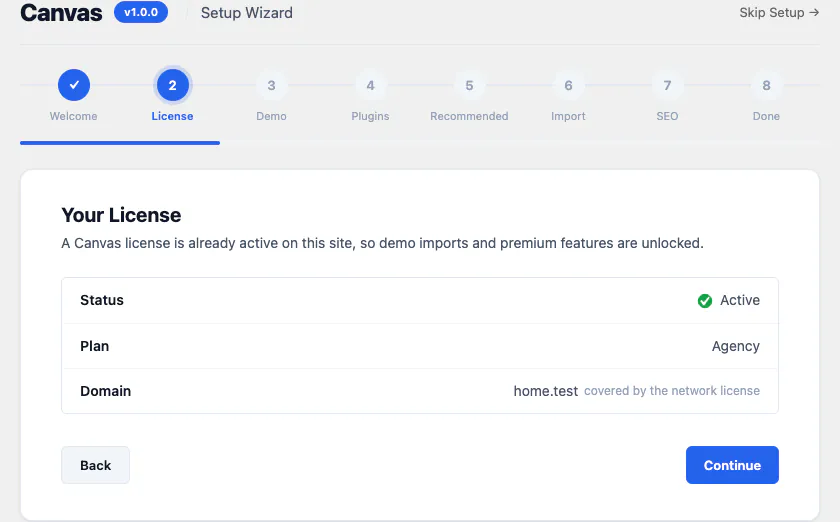
Step 2 of 8: Activate this website with your key
Paste the licence key from your dashboard and Canvas activates this website. The step then reports back in plain language: the status, the plan the key belongs to and the domain the seat is now attached to.
A licence is what opens demo imports, premium blocks in the editor, AI and updates. It is a service key. Whether your website loads is never in question.
What you decide
- Which website spends a seat from your plan
- Staging, development and local copies of a licensed site are free and use no extra seat
- Move a project to a new domain by deactivating the old site from your dashboard
On a website that has never held a key, premium blocks show a notice only administrators can see, and demo import stays closed. Activate a key later and everything comes back in place. If a routine check cannot reach our servers, Canvas carries on as normal for 14 days.
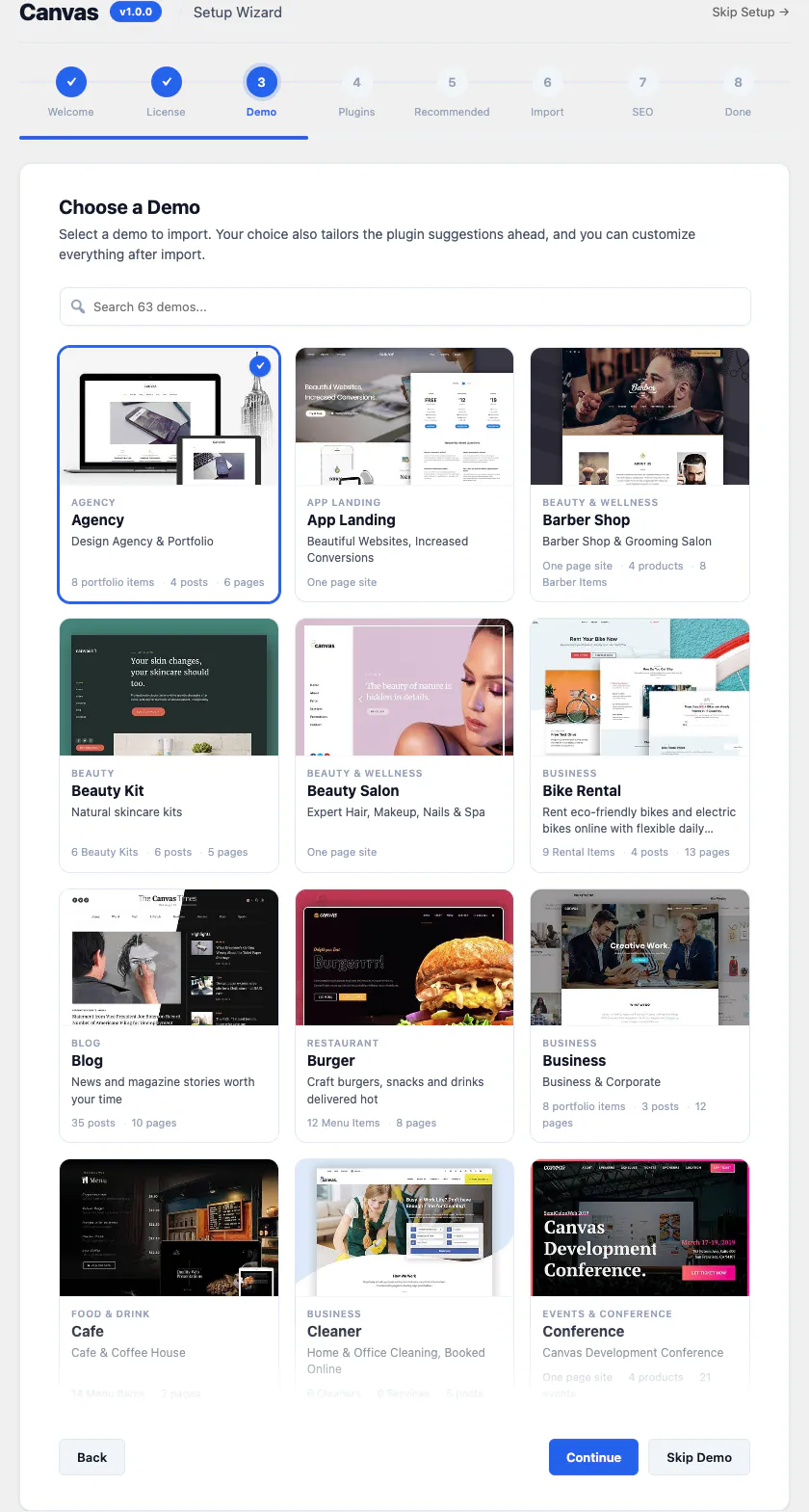
Step 3 of 8: Choose one of the 80 demo websites
Search the catalogue and pick the website you want to start from. Every card names its category and counts what the demo actually brings: pages, blog posts, portfolio items, products or its own content type, so you know what lands before you press anything.
Your choice also tailors the plugin steps that follow. Pick a store and the wizard knows a store needs a store plugin.
What you decide
- Which demo you start from, of the 80 across 16 categories
- Whether to import it site-wide or on its own
Site-wide means the demo becomes your design: its Theme Options, site title and front page are adopted, so pages you create later match it. On its own means the demo pages arrive and your title, front page and current design are left exactly as they are. Skip Demo takes you straight past, and Canvas, Demo Import has the same catalogue whenever you want it.
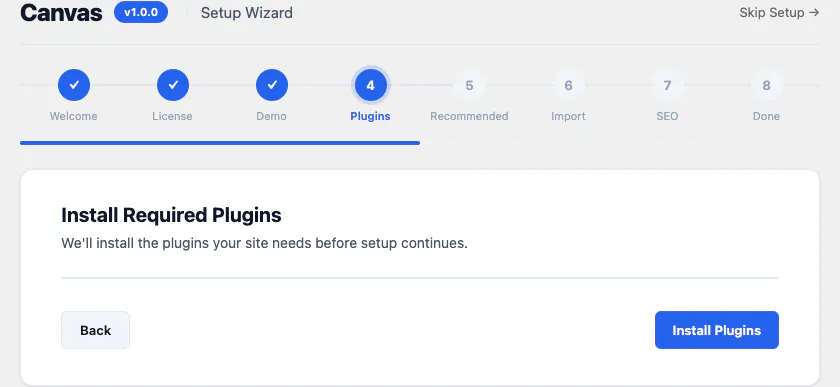
Step 4 of 8: Canvas installs what your demo needs
If the demo you picked depends on a plugin, this step installs it from the WordPress plugin directory and activates it before setup continues. A store demo needs WooCommerce, because a store needs products, a cart and a checkout.
Most demos need nothing here. Headers, footers, forms, sliders, portfolios, events and page layouts are Canvas blocks, so there is no stack of add-ons to assemble first.
What you decide
- Nothing beyond starting the install: the list is derived from the demo you chose
- Install the same plugins yourself later if you would rather do it by hand
When the demo requires nothing, the step marks itself as skipped in the progress rail and moves you on. An install that fails is reported and never fatal, so a locked-down filesystem cannot strand you mid-setup.
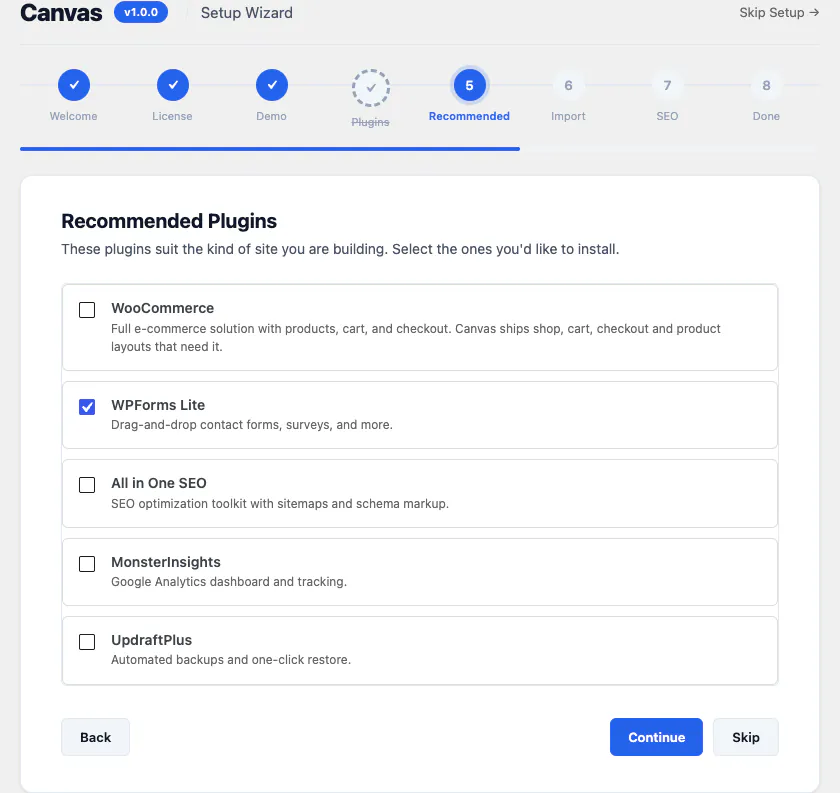
Step 5 of 8: Optional extras, none of them forced
A short list of plugins that suit the kind of website you are building, each with a line explaining what it is for: a store plugin, a form plugin, an SEO toolkit, analytics, backups.
These are suggestions, not requirements. Canvas ships its own forms, its own SEO and its own performance settings, so most of this list is about the habits you bring with you, not gaps in the theme.
What you decide
- Which boxes stay ticked: untick anything you do not want
- Skip installs none of them and costs you nothing later
Nothing here is a dependency. Skip the step and every page of your demo still renders exactly as its preview does.
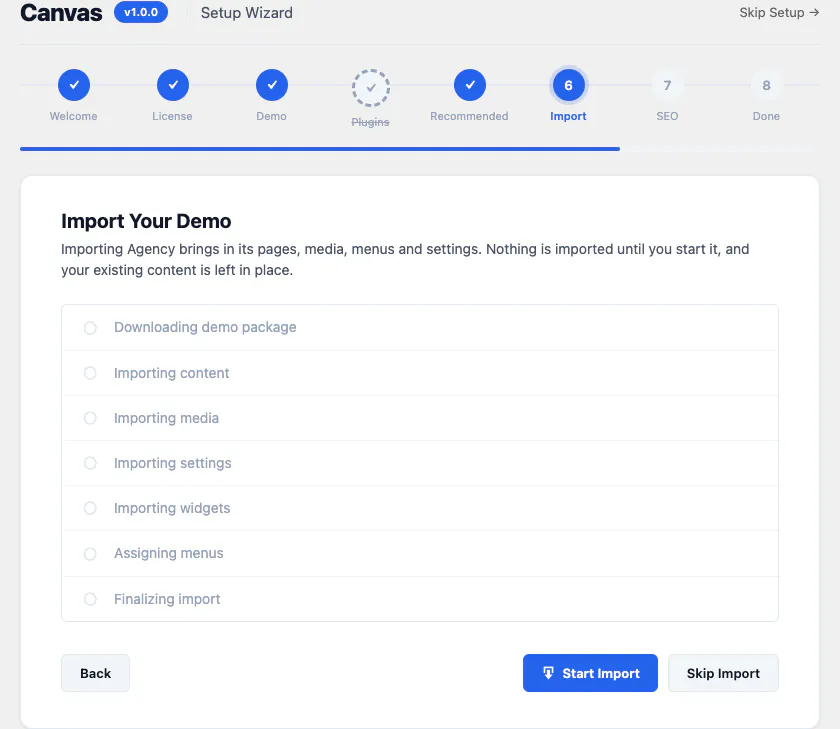
Step 6 of 8: Watch the import, and undo it later
The import runs in named stages you can watch go by: the demo package downloads, then content, media, settings, widgets and menu assignments, then a finalising pass. No progress bar that means nothing, and no blank screen.
Nothing is imported until you press start, and your existing pages and posts are left where they are. A site-wide import also adopts the demo Theme Options, site title and front page, which is what makes new pages match the design you chose.
What you decide
- When the import starts, and whether to skip it entirely
- Whether the demo becomes your site design or arrives as pages on their own
Every post, term, attachment and menu the import creates is recorded, so Canvas, Demo Import can roll the whole thing back: it removes the imported content and restores the settings you had before. Content that was already there is never touched. Take a backup first, as you would before any import.
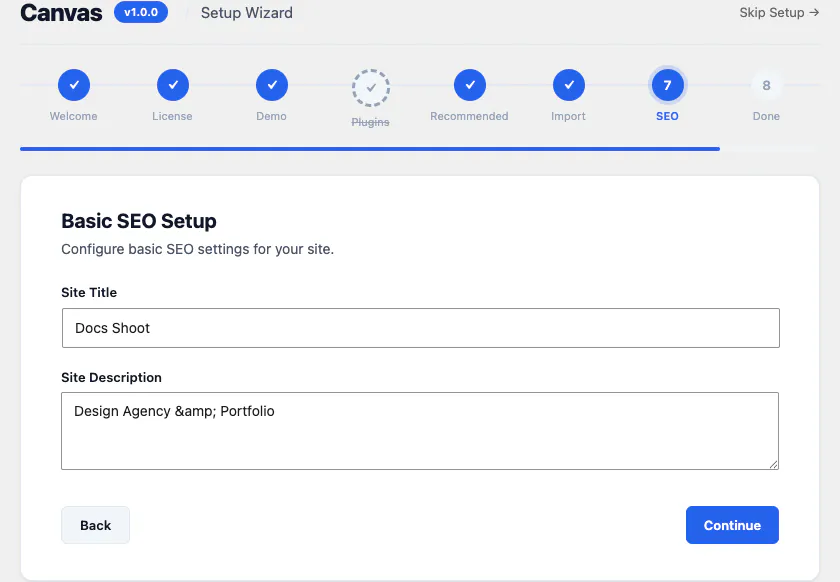
Step 7 of 8: Name the website once
The step asks for the site title and the site description WordPress calls your tagline. They are the words that appear in browser tabs, in search results and in the sharing card when someone posts a link to you.
From there Canvas derives the rest. Page titles, meta descriptions and structured data are built from your live content as the page renders, so you never type them into a second set of boxes.
What you decide
- The words, which is the only part a machine cannot do for you
- Whether to leave what the demo wrote and come back once the copy is final
A site-wide import fills both fields in from the demo, so this step is usually a review. Change them here, in the WordPress settings screen, or on the Canvas SEO screen, where title templates, the default sharing image, schema, the sitemap, robots rules and analytics live.
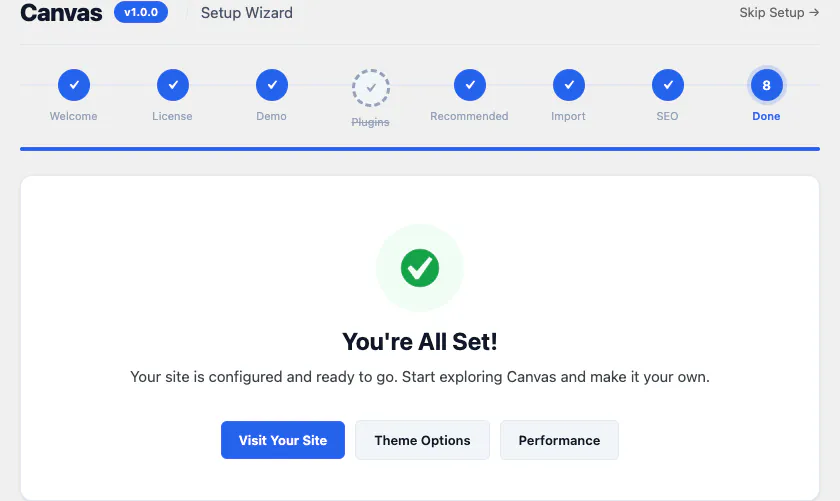
Step 8 of 8: Land on a finished website
The last step confirms the website is configured and offers a choice of where to go next: visit the site, open Theme Options, or open the Performance screen. None of it is a dead end. The wizard has left you a working website, and the next move is editing it.
What you open first is usually a page in the block editor, where every heading, image, price and button of the demo is an ordinary block with its own settings panel.
What you decide
- Where you start editing
- Whether to tune Theme Options now or after the copy is written
The wizard stays in the menu under Canvas, Setup Wizard. Reopen it to import another demo, to activate a key you did not have on the day, or to look at what you skipped.
A real website, on the first day
The wizard hands over a working site: pages, media, menus, settings, all in place. Everything from here is ordinary editing, and everything it did can be undone.
Edit any page in the block editor
Pages open with the whole template drawn in the canvas, header and footer included. Every part of the demo is a block with a settings panel, so there is no "edit as HTML" step and no shortcode to memorise.
Adjust Theme Options
The demo set 460 fields across 22 sections for you. Change the ones you care about, search the rest by name, and export the whole configuration to the next website you build.
Import another demo
Canvas, Demo Import holds the same catalogue as the wizard. Bring in a second demo for its pages alone, or hand the whole design over to it, on any day you like.
Roll an import back
Every import is tracked as its own record, so removing one demo leaves the others alone and brings your previous settings back with it.
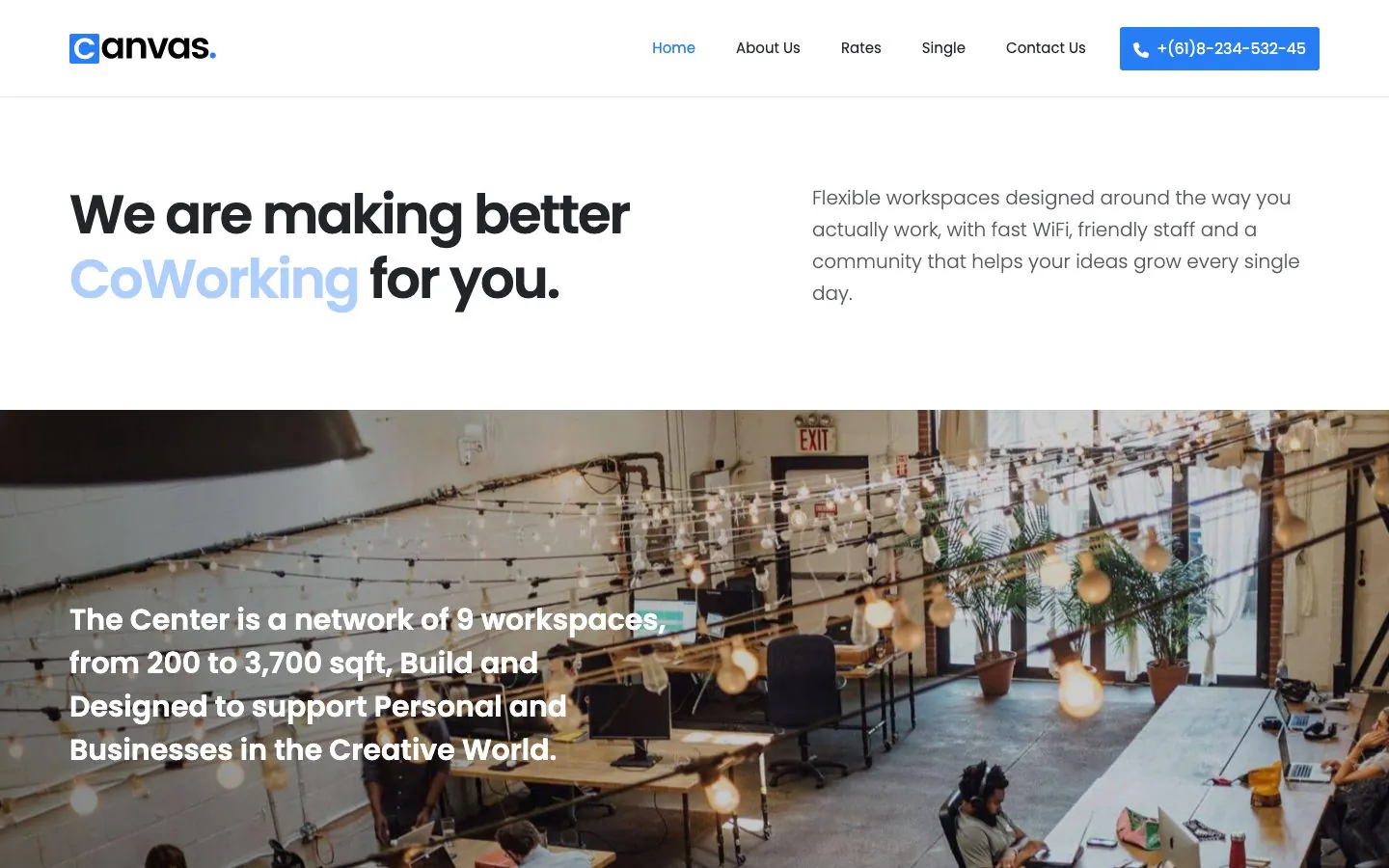
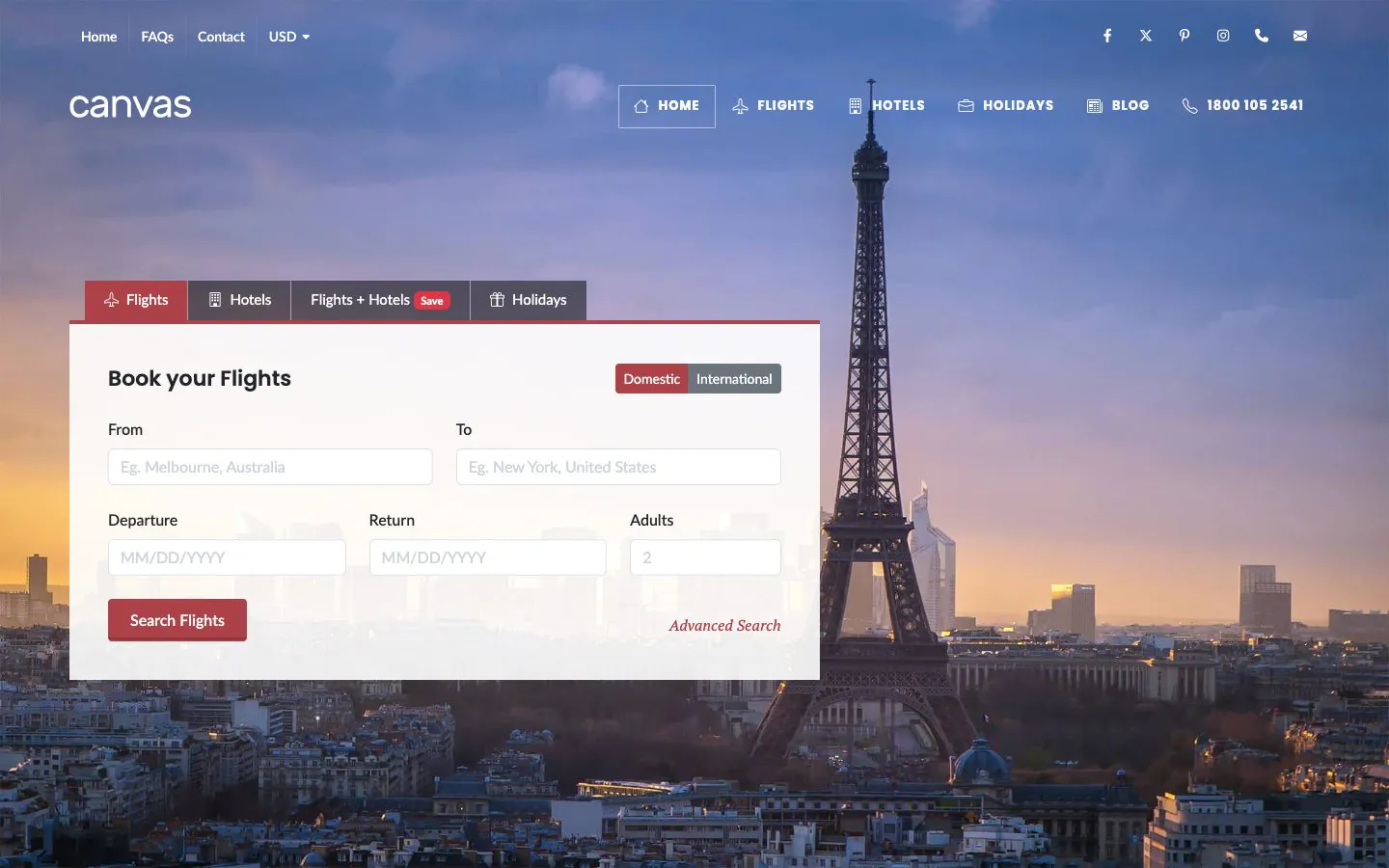
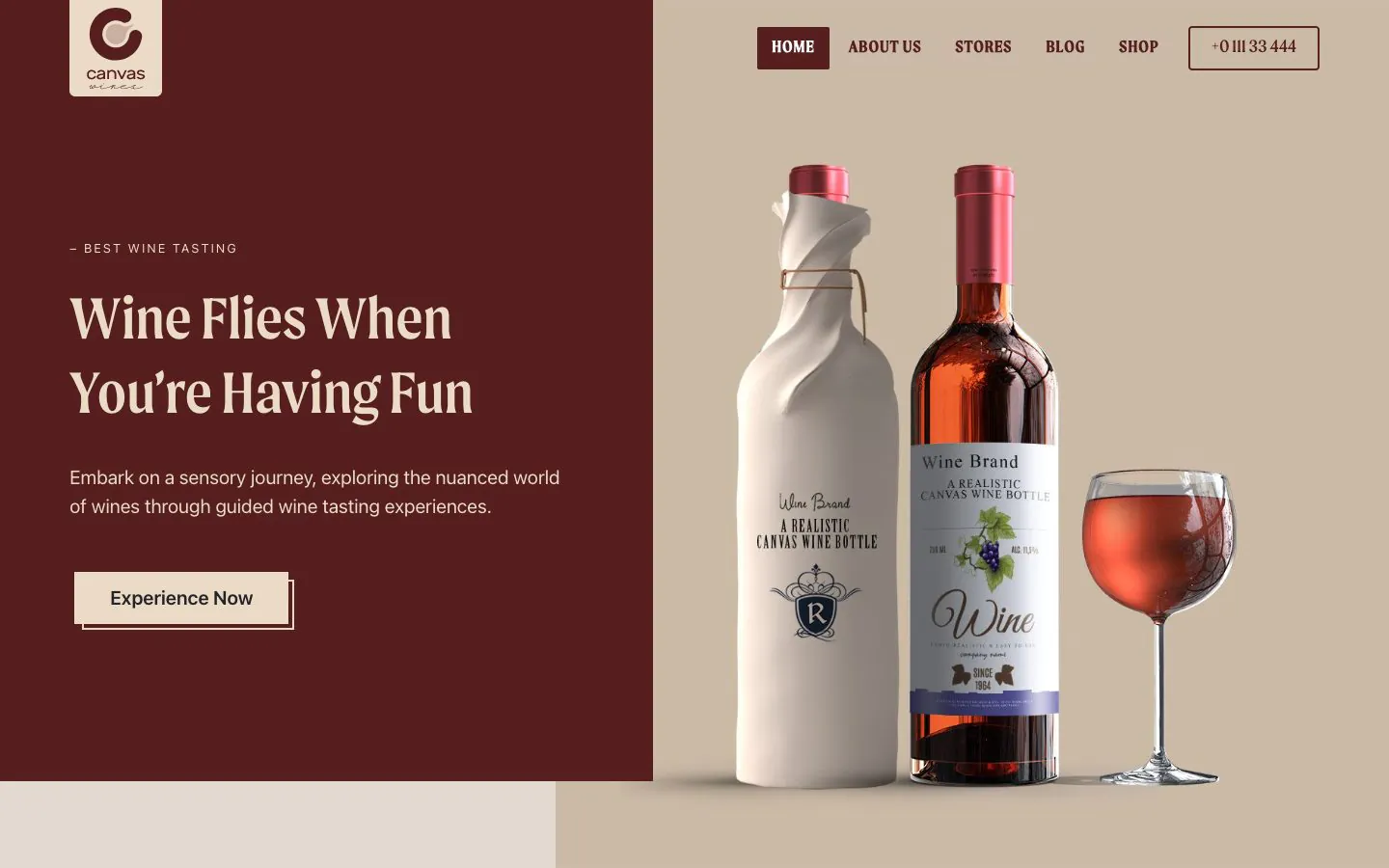
Three of the 80 demos, as the wizard leaves them: real pages, real menus, real media in your own library, and every word of it editable.
The jobs that are not on your list
How long setup takes depends on your host and the size of the demo package, because most of the wall clock time is the download and the media library being built. What Canvas can promise is the work you do not have to do at all.
- No page builder to learn: pages are blocks in the editor WordPress ships
- No separate importer plugin to install, license or configure
- No settings screen to fill in from scratch, because the demo brings its own
- No menus to build by hand, because the demo assigns its own
- No header or footer to assemble before the first page looks right
- No placeholder paragraphs to hunt down, because every page carries real content to edit
- No child theme to create before you can change a colour or a font
- No second SEO tool to configure before a page can be indexed properly
What the wizard leaves behind
Pages, posts, media, menus, forms, headers, footers and, for a site-wide import, the demo Theme Options and front page. The first thing you do on a Canvas site is edit, not assemble.
About setup
The rest of the answers live in the full FAQ and the 382 documentation articles.
Do I have to use the wizard at all?
No. Skip Setup is on every step, and Canvas works without ever running it. The wizard is a shortcut through jobs you would otherwise do one screen at a time: the licence screen, the demo importer, the plugin installer and the site title. It stays in the admin menu under Canvas, Setup Wizard, so come back to it whenever you want.
Will importing a demo overwrite my existing pages?
No. An import adds content; your existing pages and posts stay exactly where they are. A site-wide import does adopt the demo Theme Options, site title and front page, which is the point of it, and a rollback restores them. Take a backup before any import, the same as you would for any change that touches content.
Can I run the wizard again or import a second demo?
Yes to both. Reopen it from Canvas, Setup Wizard, or go straight to Canvas, Demo Import for the same catalogue. Each import is recorded separately, so a second demo does not disturb the first and either one can be rolled back on its own.
What happens if I do not have a licence key yet?
The wizard still runs and the theme still works. Demo import is the part that needs an active licence, because the demo packages are served from our servers after the key is checked. Activate a key on the licence step, or later from Canvas, License, and the catalogue opens.
Which plugins does Canvas require?
None. Canvas is a block theme with one companion plugin, and between them they cover headers, footers, forms, sliders, portfolios, events, SEO and performance. A demo can require a plugin for something outside that, WooCommerce for a store being the usual case, and the plugins step installs it for you. Everything on the recommended step is optional.
Build your next website with Canvas
Beginner, freelancer or agency, you get the same blocks, the same demos and the same support. Start with one site and add more when you need them.