

460 Theme Options in 22 sections, one screen
Everything a demo sets for you, you can change, from one screen in the WordPress admin. Search it by name, let a block override it where you need something different, and export the whole configuration to the next website you build.
Canvas, then Theme Options
One screen, 22 sections down the left, a search box at the top and a save button that never moves. The larger sections are split into tabs so you are never scrolling through 92 fields at once.
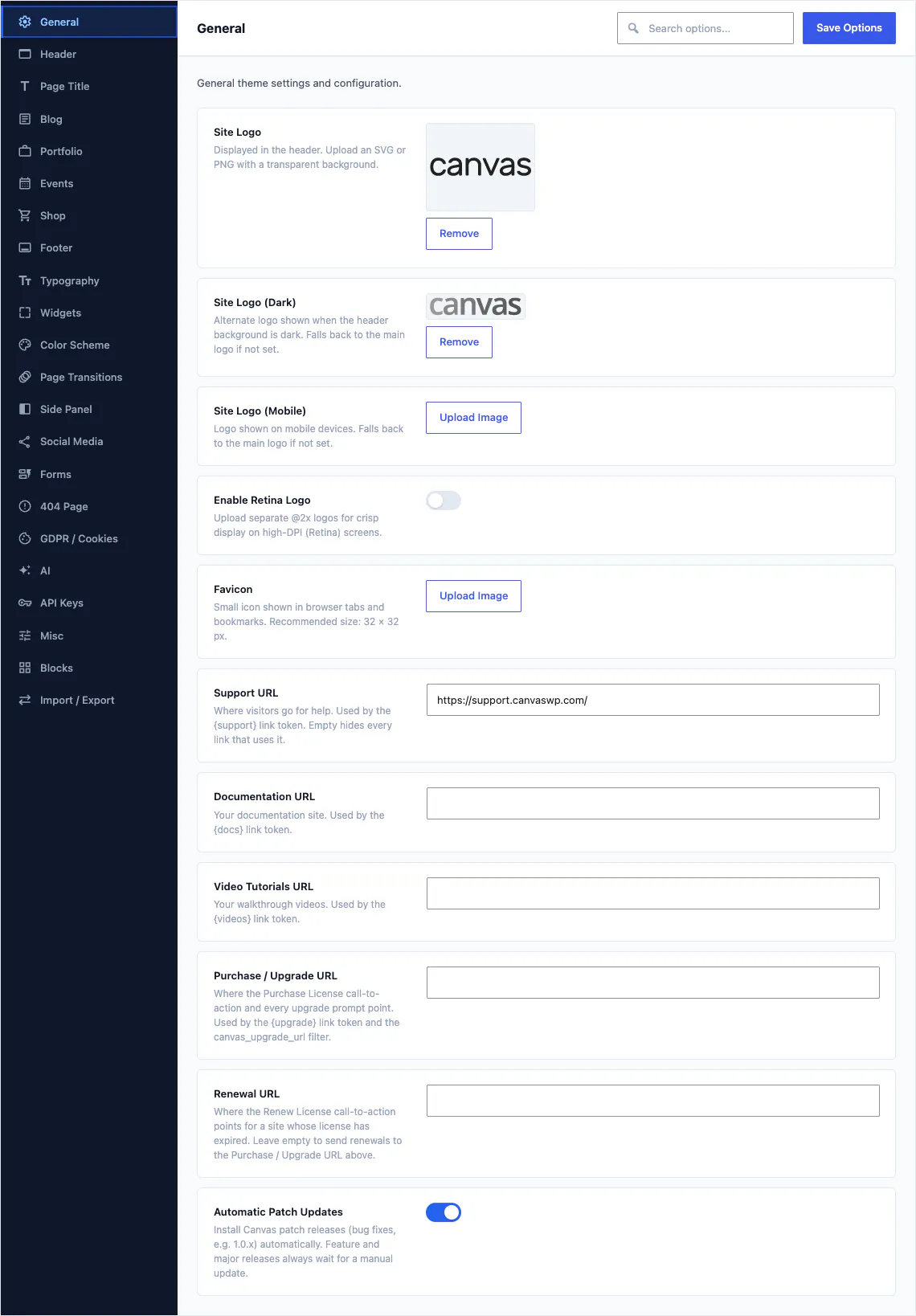
Nothing here starts empty
A site-wide demo import adopts the whole configuration of the demo you chose, so you begin from settings that already match the design in the preview. Changing one applies across the site immediately, and any single block can still overrule it for itself.
- Search every field by name, so you stop hunting through sections
- Each field carries a short description saying what it does and when to use it
- Changes apply site-wide, so one edit reaches every page that uses the setting
- Export the configuration as a file and import it into the next site
Fields you can set
Sections on the screen
In the header alone
Demos that preset them
The frame around every page
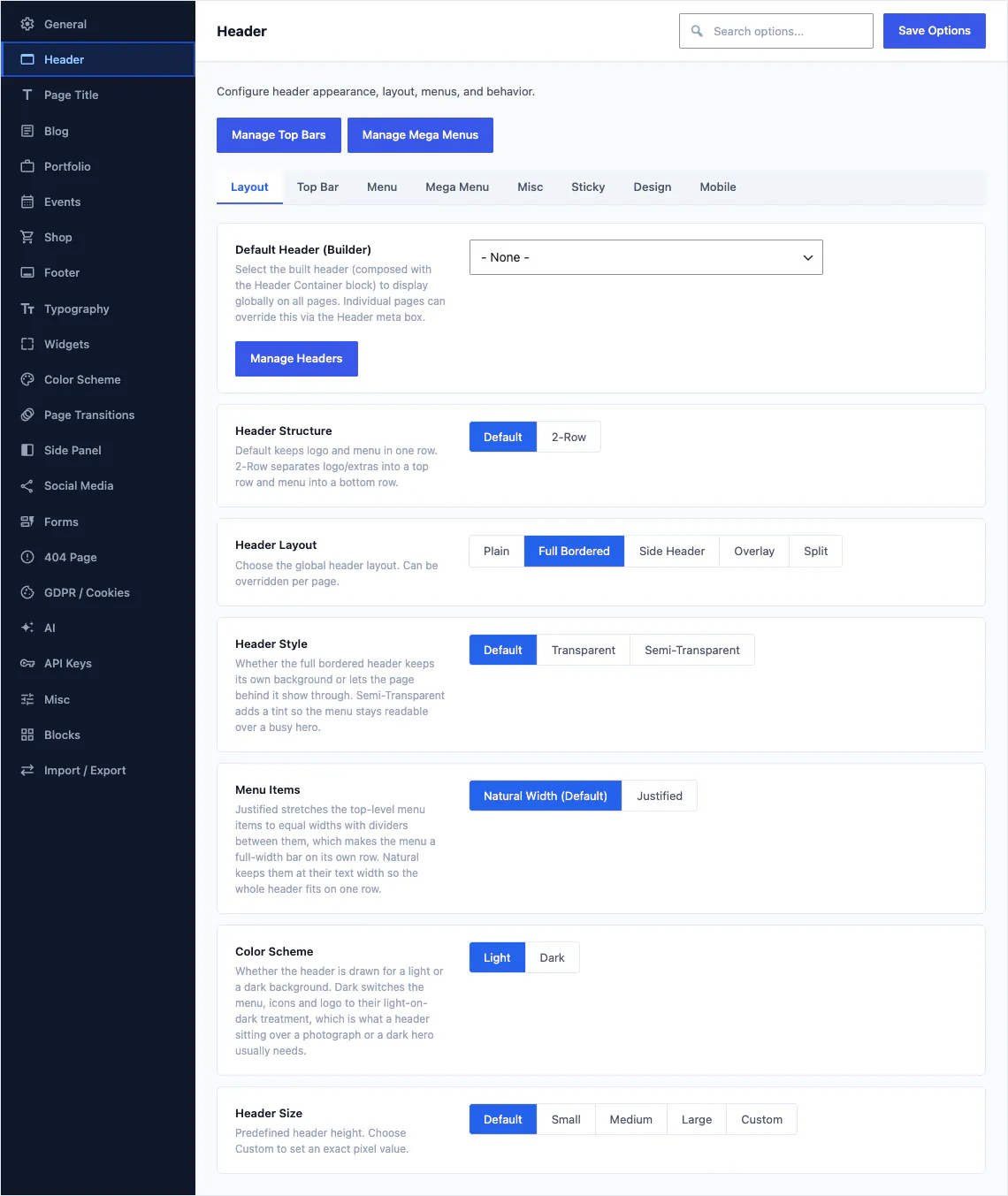
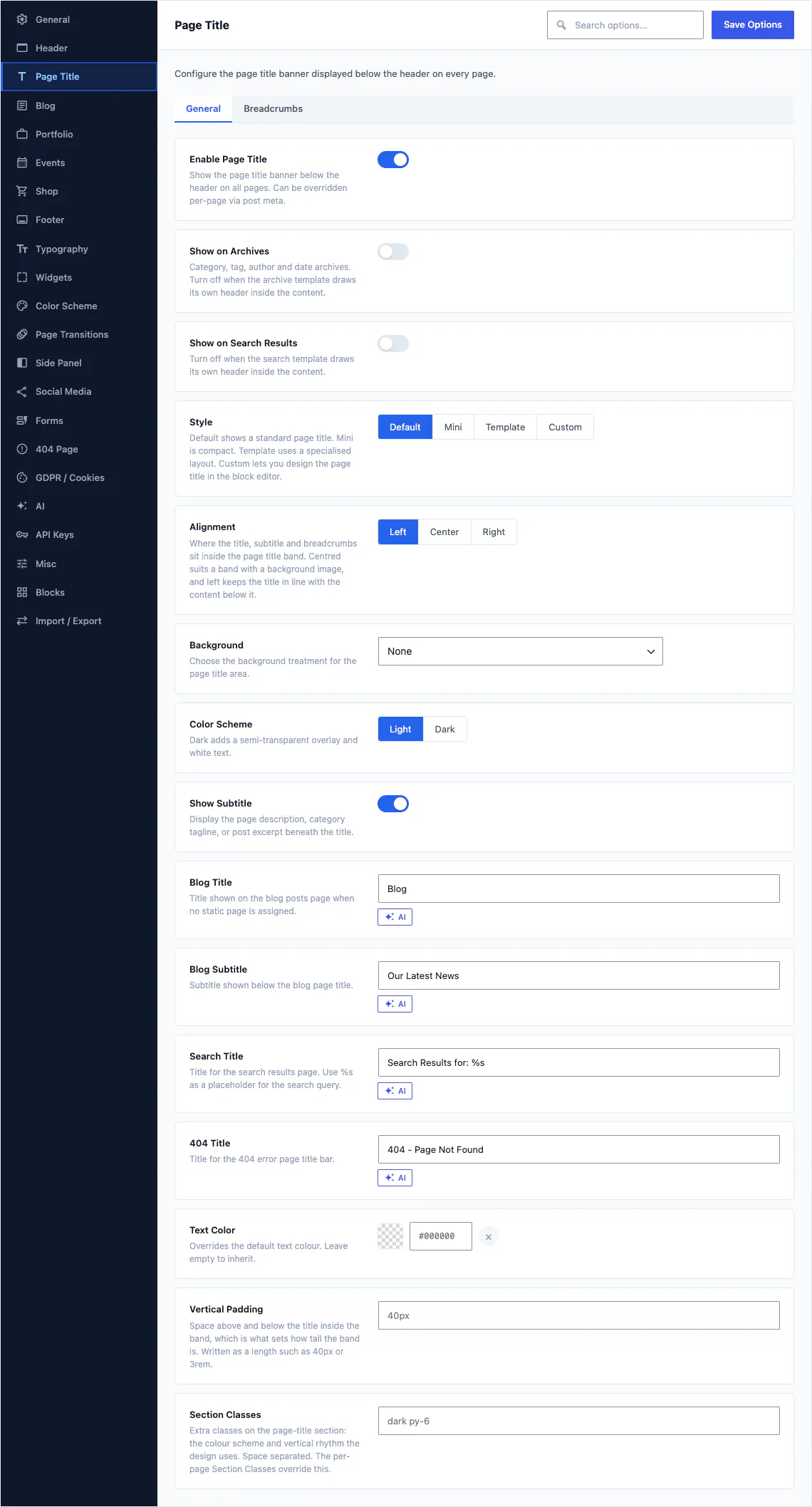
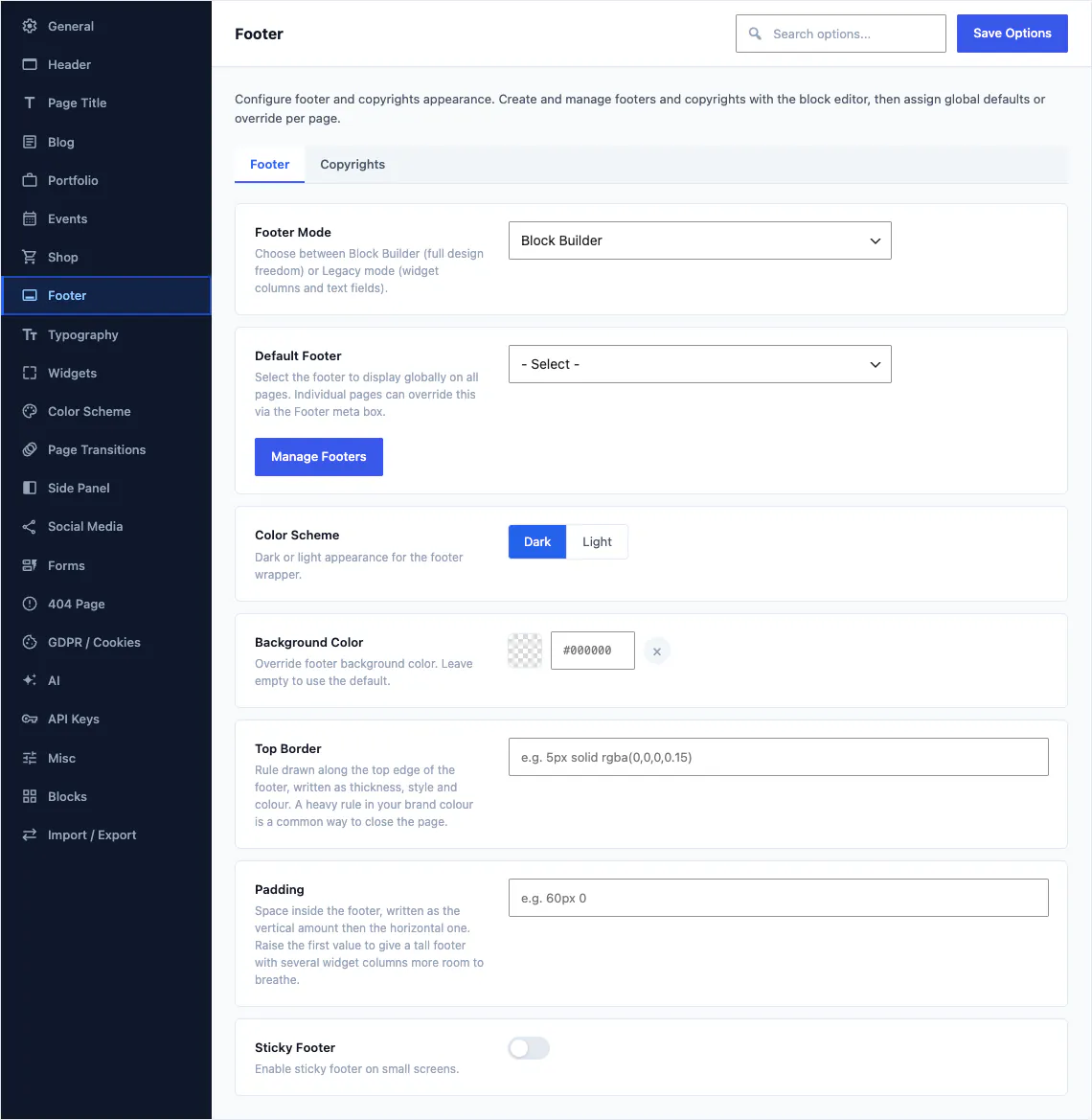
The header, the band under it, the footer and the side panel. These sections hold the site-wide decisions that no single header or footer record should own. The header alone is the largest section in the product.
- Pick the default header record, then override it on any single page
- Choose the header layout and style: plain, full bordered, side header, overlay or split, transparent or semi-transparent over a hero
- Set the page title band to Default, Mini, a named template or a layout you designed yourself
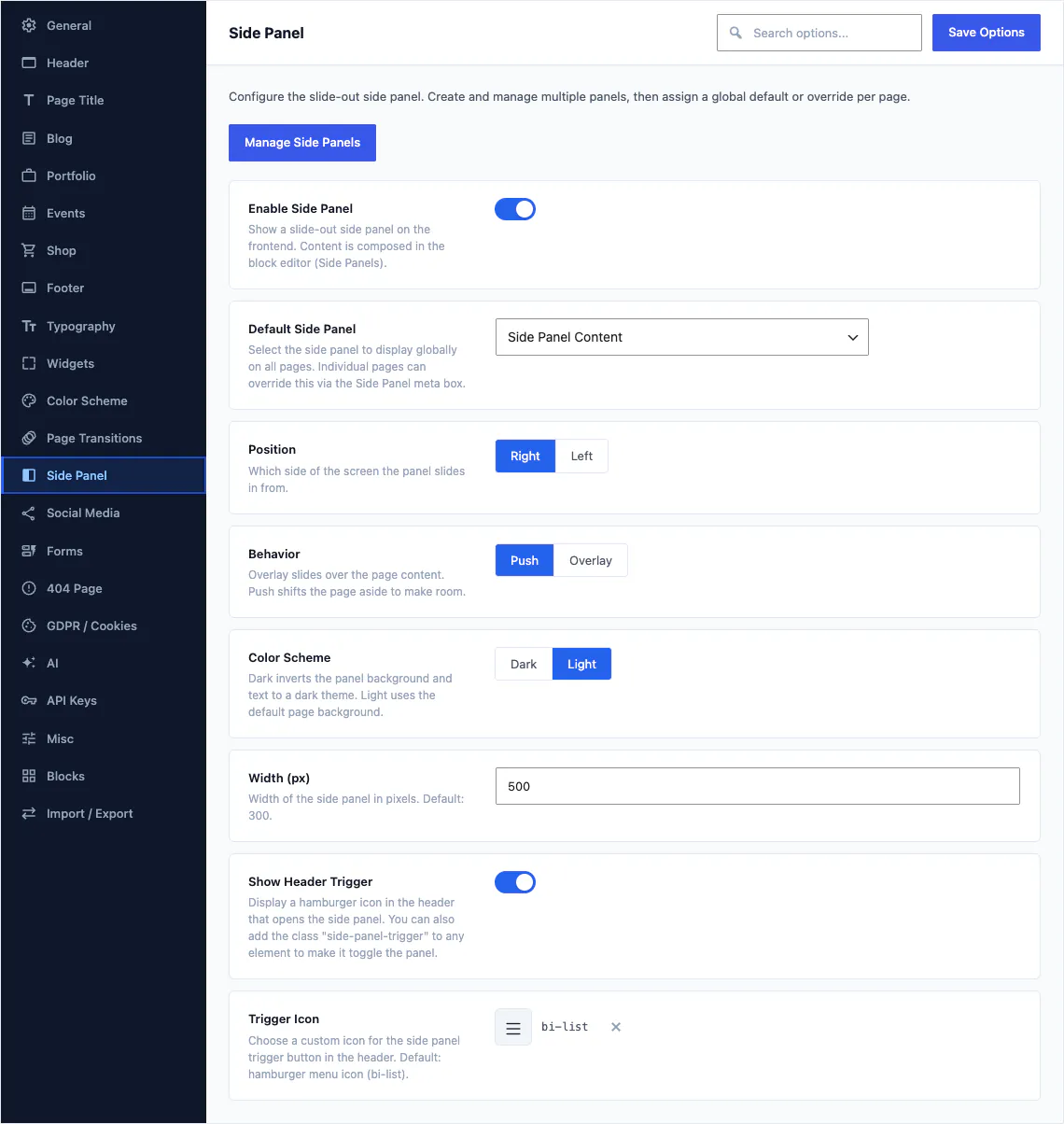
- Turn the slide-out side panel on, choose which edge it comes from and whether it pushes the page or floats over it
What is in this group
Header 92 fields
Structure, layout, style, menu behaviour, sticky rules, mobile breakpoints and the top bar.
Page Title 57 fields
The band under the header: its style and height, its background and alignment, and whether breadcrumbs show.
Footer 17 fields
The default footer record, its columns and the copyright bar underneath it.
Side Panel 8 fields
Default panel, side, push or overlay behaviour, width, colour scheme and the trigger icon.
Posts, projects, events and products
Every content family Canvas ships has a section of its own: the archive layout, what a card shows, what a single record shows, where the sidebar goes. Set it once and every archive of that kind follows.
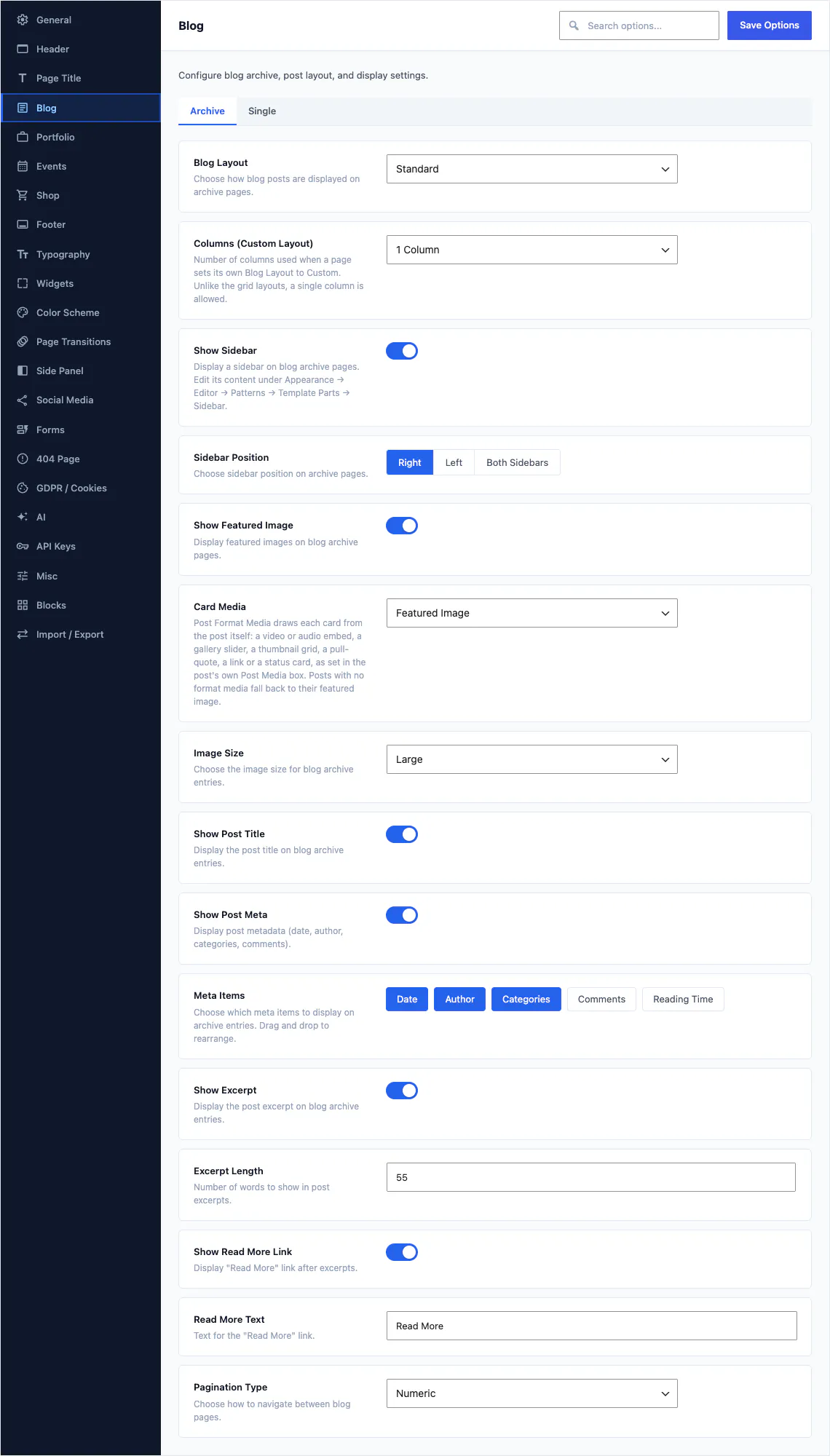
- Choose the blog archive layout and columns, then pick exactly which meta items appear on a card: date, author, categories, comments, reading time
- Draw each card from the post format media: a video, a gallery slider or a pull quote in place of the featured image
- Set the excerpt length, the read more wording and whether pagination is numeric or a load more button
- Portfolio projects, events and products work the same way, each with its own archive and single settings
What is in this group
Blog 33 fields
The archive tab holds the layout, the card media and the meta items. The single tab holds everything after the click.
Widgets 28 fields
The look of every sidebar and footer widget: padding, border, radius, shadow, title style.
Forms 26 fields
How fields look, how spam is caught, who gets notified, and where entries are stored.
Shop 22 fields
The WooCommerce shop grid and the product page, then the cart and the checkout.
Portfolio 20 fields
Project archive, filters, category pages and the single project layout.
Events 15 fields
Event archive, calendar, dates, location display and the single event page.
Colour, type and the small design decisions
The palette and the fonts feed the block editor as well as the front end, so the swatches an author sees in a colour picker are the swatches you set here.
- Set the palette once: primary, secondary, accent, text, background. Those same swatches appear in the block editor as Theme Color, Secondary and Accent
- Turn on the adaptive colour scheme and the site follows the visitor operating system into dark mode
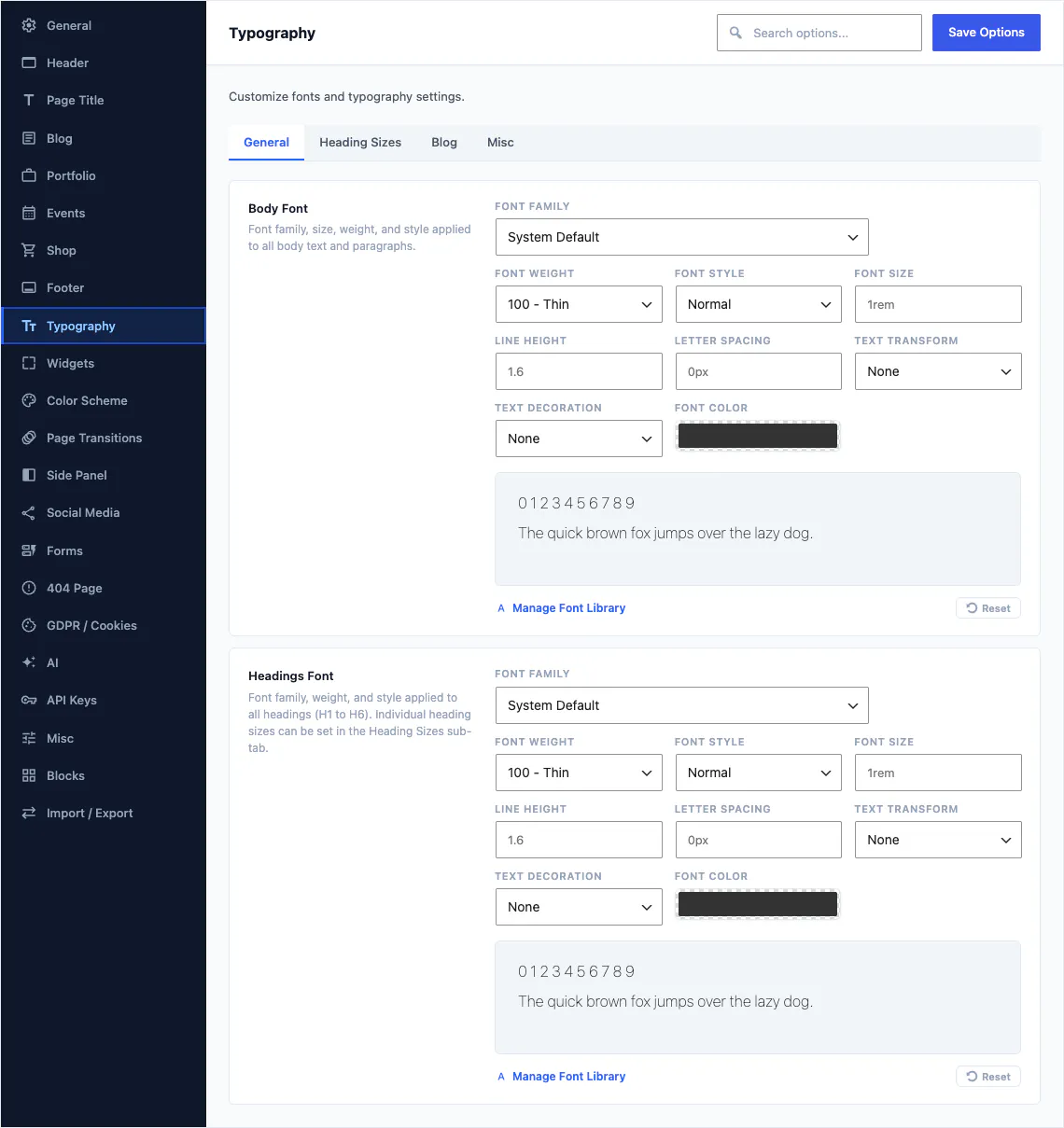
- Choose body and heading fonts from 1,923 Google families, an Adobe Fonts kit or your own uploaded files
- Style the 404 page, or hand the whole of it over to a page you designed yourself
What is in this group
Color Scheme 8 fields
Primary, secondary, accent, text, background. Plus adaptive dark mode and the colour presets.
Typography 8 fields
Body and heading fonts, heading sizes, blog typography and a rule editor for anything else.
404 Page 12 fields
The built-in error page wording, search form and links, or a custom page in its place.
Page Transitions 9 fields
The loading overlay and entrance effect between pages, off by default.
Search, social and consent
SEO has a screen of its own under the same Canvas menu, built from the same controls as Theme Options, with 7 tabs. Social profiles and the cookie consent bar stay in Theme Options, because blocks read them directly.
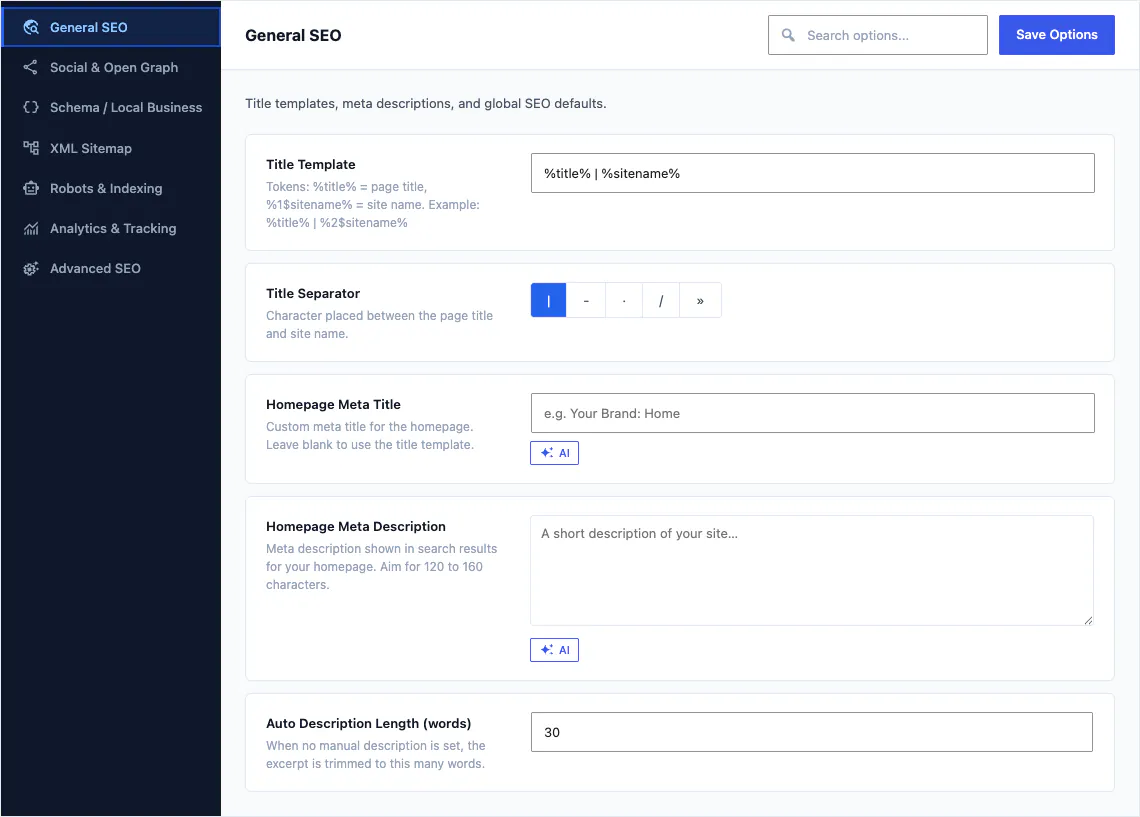
- Write a title template once with tokens for the page title and site name, and every page follows it
- Leave a meta description empty and Canvas trims one from the content, so the tag is never blank
- Keep your social profiles in one repeater: a Social Icons block set to use the global links renders them everywhere, so one edit updates them all
- Turn on the consent bar and the privacy preferences modal when your audience needs one
What is in this group
SEO screen
7 tabs: General, Social and Open Graph, Schema and Local Business, XML Sitemap, Robots and Indexing, Analytics, Advanced.
Social Media
One list of profiles with label, icon, URL and brand colour, read by every social block.
GDPR / Cookies 14 fields
The cookie consent bar, the preferences modal and what each category is allowed to load.
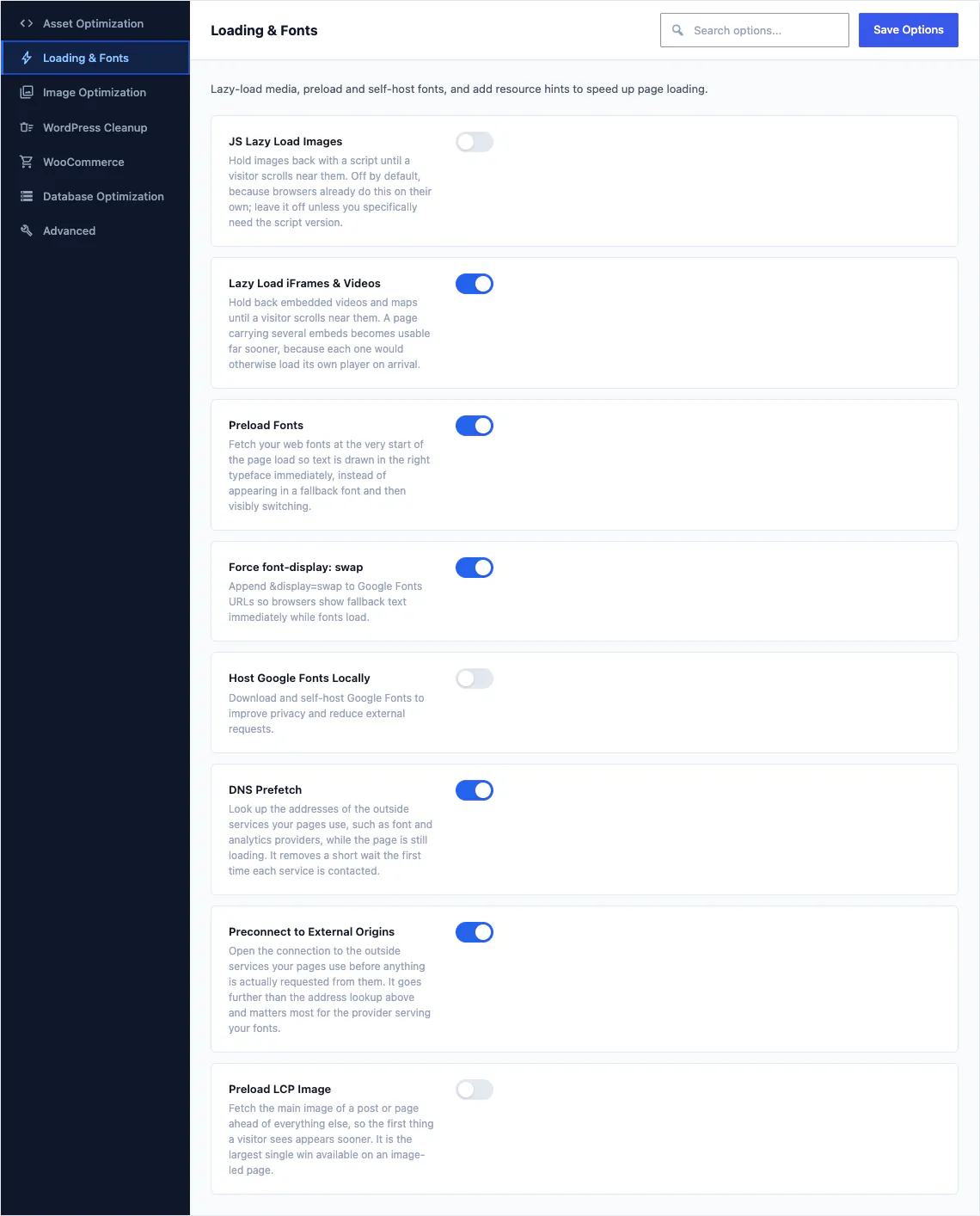
Performance, as a set of switches you can read
Performance is the second sibling screen, with 7 tabs and 35 individual optimisations. Every switch says what it does and why in plain language, including the ones we recommend leaving off.
- Defer and delay scripts, inline critical CSS and hold back off-screen iframes and videos
- Preload your fonts and the largest image on the page, or self-host Google Fonts for privacy
- Strip the WordPress extras you do not use: emoji scripts, embeds, query strings, XML-RPC
- WooCommerce gets 5 switches of its own, so a store stops loading cart fragments on pages that have no cart
What is in this group
Asset Optimization
How CSS and JavaScript are combined, deferred and delayed.
Loading & Fonts
Lazy loading, font preloading, self-hosting and resource hints.
Image Optimization
JPEG quality, maximum upload width and the image sizes you generate.
WordPress Cleanup
Emojis, embeds, dashicons, XML-RPC, RSS and other core extras.
WooCommerce
Cart fragments, the password meter and store assets on non-store pages.
Database Optimization
Revisions, autosave interval, heartbeat and scheduled cleanups.
Advanced
Speculative loading, REST restrictions and the switches to reach for last.
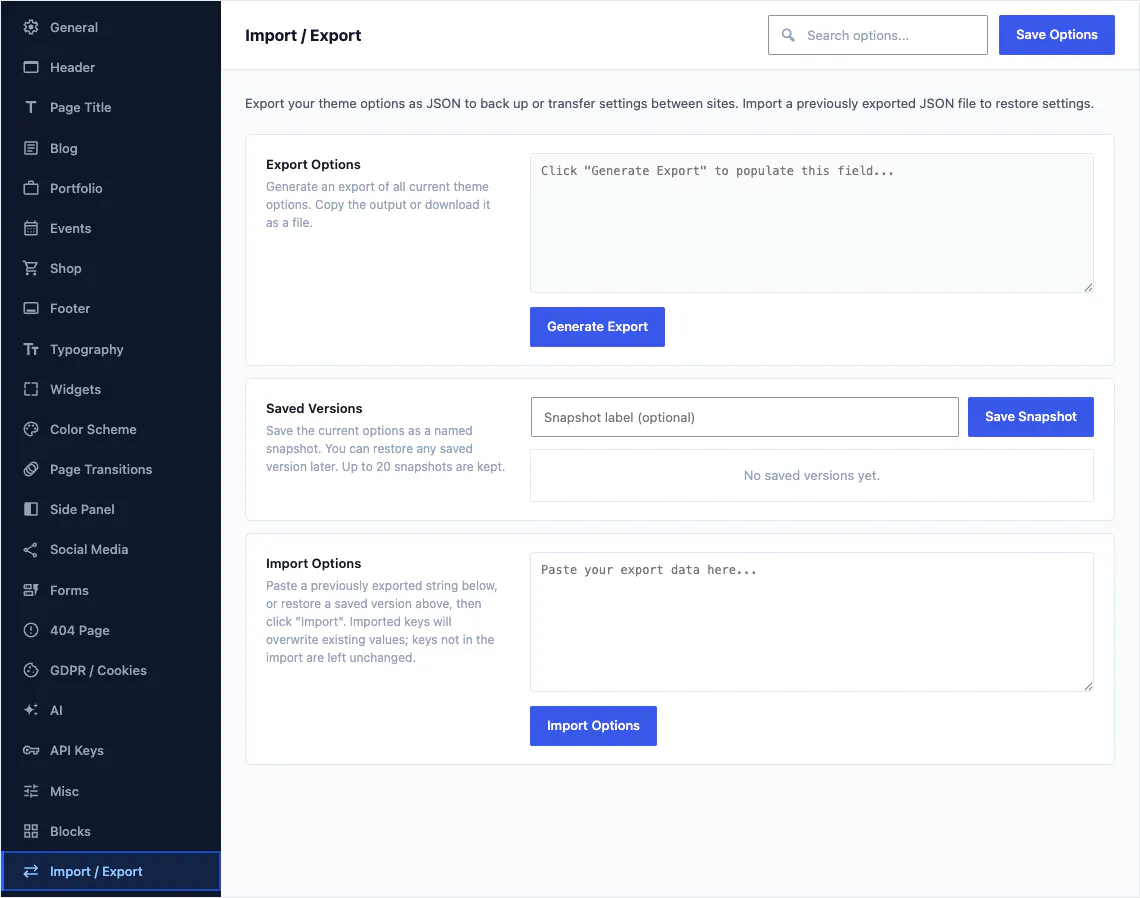
The site itself, and moving it around
Logos and favicons, maintenance mode, the AI brand profile, the block inventory, third-party keys, and the screen that carries a whole configuration to the next website you build.
- Upload the site logo, a dark variant, a mobile variant and the favicon in one place
- Put the site behind maintenance mode or a coming soon page while you build, with the admin still reachable
- Tell the AI writer about your business once, in your own tone, and every generated headline comes back sounding like your site
- Disable any Canvas block you do not want: it leaves the inserter and stops loading its front-end assets
- Export the whole configuration as JSON, or save a named snapshot before a big change and restore it if you change your mind
What is in this group
General 14 fields
Logos, favicon, support and documentation links, and automatic patch updates.
Misc 66 fields
Maintenance mode, coming soon, custom code, custom cursor and the back to top button.
AI 8 fields
Business description, tone of voice, audience, words to avoid, minimum role and credits display.
Blocks
One list of every Canvas block, each with a switch that removes it from the inserter.
API Keys
Third-party credentials the theme needs, such as a Google Maps key for map blocks.
Import / Export
JSON export, up to 20 saved versions, and import into another site.
How a site option and a block setting fit together
A site option is the default. A block setting is an exception you make on purpose, and it only ever applies to that one block.
The site option is the default
Theme Options, Blog, Show Sidebar decides what every blog archive on the site does. You set it once, in the place where a site-wide decision belongs.
A block setting wins, for that block
Set the sidebar on one Blog Archive block and only that block changes. Nothing else on the site moves, and you have not created a second global rule to remember.
Theme Options is the inherit value
In the block panel the choice literally reads Theme Options. Leave it there and the block follows the site. Change the site option later and every block still set to inherit moves with it.
You see the same pattern wherever a block has a site-wide twin. Portfolio Archive pagination follows Portfolio, Pagination Type until you choose otherwise. Header Navigation follows Header, Mobile, Mobile Menu Style. A Social Icons block set to use the global links reads the profiles from the Social Media section, so one edit there updates every social row on the site.
- Site-wide defaults live in Theme Options, per-page overrides live on the page
- Templates, template parts and global styles stay in the WordPress Site Editor
- Every block also carries the shared advanced panel: classes, an ID, custom CSS and display conditions
About Theme Options
The rest of the answers live in the full FAQ and the 382 documentation articles.
How do I find one option among 460?
Use the search box at the top of the screen. It filters every field in every section by name, so you type "sticky" or "excerpt" and stop trying to remember which of the 22 sections holds it. The sections themselves are listed down the left, and the larger ones are split into tabs.
Do I have to configure all of them?
No. Every field has a sensible default, and a site-wide demo import sets the whole configuration for you before you touch anything. Most people change a handful: the logo, the colours, the fonts and whichever archive layout they prefer. The rest sit there in case you need them.
Can I copy settings from one site to another?
Yes. Import / Export writes every current setting to JSON that you copy or download, and pastes it back into another site. Imported keys overwrite existing values and keys that are not in the file are left alone. You can also save up to 20 named versions of a configuration and restore one later.
Are SEO and Performance part of Theme Options?
They sit beside it. Canvas, SEO and Canvas, Performance are their own screens under the same Canvas menu, built from the same controls and saved the same way, so nothing new has to be learned to use them. Theme Options itself is the 22 sections and 460 fields described on this page.
What happens to my settings when my licence expires?
Nothing happens to them. Your configuration is yours, the site keeps rendering exactly as it does today, and Theme Options stays where it is. What pauses is the service: updates, new demo imports, AI and editing of premium blocks wait until you renew. See the pricing page for the full contract.
Build your next website with Canvas
Beginner, freelancer or agency, you get the same blocks, the same demos and the same support. Start with one site and add more when you need them.