
How to build multiple client websites with WordPress
Building for other people turns a theme into a supply chain: one licence, several installations, several handovers, and a promise that none of it stops working when a project leaves you. This guide is that workflow in the order you do it, with the licence rule behind each step.
Step 1: Count the seats, then pick the plan
Start with the arithmetic. A site is one WordPress installation on one domain, your plan sets how many sites can have Canvas activated at the same time, and websites you build and manage for clients count towards that limit exactly like your own. Count the installations you keep activated at once, not the projects you finish in a year.
The three plans, by seat count
- Starter, $39 a year: 3 websites, 200 AI text generations and 30 AI images a month.
- Pro, $89 a year: 10 websites, 1,000 text and 150 image generations a month.
- Agency, $199 a year: 100 websites, plus activation of a whole multisite network, and 2,500 text and 500 image generations a month.
There is no feature ladder between them. Every plan ships every block, pattern, template and demo, so the plan decides how many websites you keep live and how many AI credits arrive each month, and nothing else. Your own website is a website too, so count it in before you choose.
Getting the number wrong is cheap
- Upgrade at any time from your dashboard: you pay the difference between the two plans for the time left on your term, the higher site limit and AI allowance apply straight away, and your existing activations are untouched.
- Renewals stay at the price on your first invoice, with no introductory rate that expires into a higher figure. Cancel whenever you like and the licence runs to the end of the term you paid for.
- Lifetime plans are not offered.
- Ask within 7 days of your first purchase and you get a full refund, no questions asked. Renewals and upgrades are not refundable.
A multisite network needs the Agency plan: one activation licenses the network and the subsites validate against it, while Starter and Pro license individual WordPress installations.
Other vendors slice it the other way, selling bundles of products with a high ceiling on sites. The GeneratePress comparison lays those plans beside these, with the source and the date each figure was read.
Seats, multisite and white label for a studio
Step 2: Activate the key on each website
Your key identifies your account to our servers and records which sites are using it. You enter it once during setup, or later on the Canvas licence screen, and that activation covers both the theme and the plugin, so a website never needs two keys.
What the key unlocks
Theme and plugin updates, demo package downloads, Canvas AI credits, and the ability to insert and edit premium blocks in the editor. The code itself is GPL v2 or later, nothing in it is obfuscated or set to stop working on a date, and the key governs the service rather than the code.
The routine on a new project
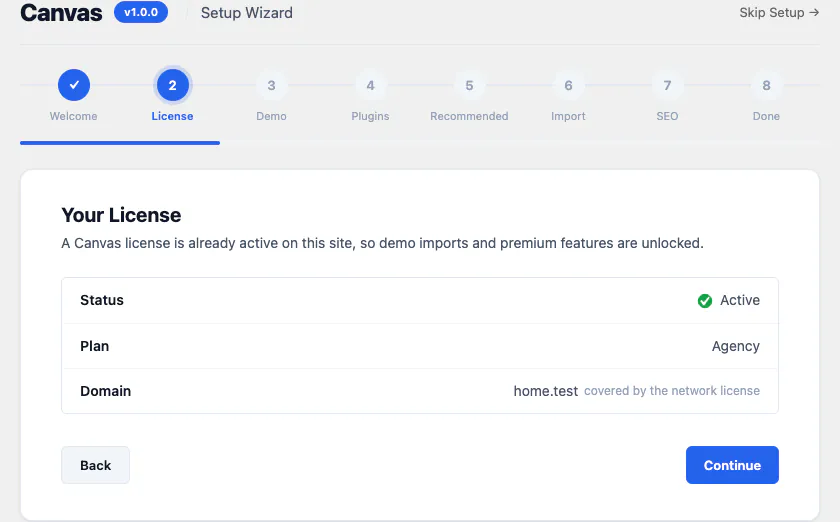
- Download the theme from your dashboard, upload and activate it in the WordPress admin, and paste the key when the setup wizard asks for it. All 8 steps are named along the top: welcome, licence, demo, plugins, recommended tools, import, SEO and done.
- Read the licence screen before you move on. It reports the status, the plan the key belongs to and the domain the seat is now attached to, which is how you keep track of where your seats have gone.
- When a project ends or a domain changes, deactivate from the licence screen and the seat returns to your pool immediately, ready for the next one.
Two rules worth reading once
- Client websites are allowed on your own licence when you build and manage them. Activating on websites you neither build nor manage, to avoid buying a larger plan, is not.
- Sharing, publishing, reselling or sublicensing a key is prohibited. The code stays GPL through all of it; the restriction is on the service the key unlocks.
If a licence check cannot reach our servers, Canvas carries on as normal for 14 days before treating the licence as lapsed, so an outage at either end never becomes a client's problem.
Step 3: Work on a staging copy, which uses no seat
You rarely want the first draft of a client site on the domain the client is watching. Keeping it elsewhere costs nothing: staging, development and local copies of a website you have licensed do not use another seat.
How the seat follows the work
- Build locally or on a staging host, then activate the real domain when the site goes live. Moving between your own sites is a deactivate and an activate, and a domain change works the same way.
- Test an update on the copy before it reaches a client's visitors. That is what the rule is for, and it is why you should not be paying twice to do it.
- If a copy is counted by mistake, deactivate it on that copy's Canvas licence screen and the seat comes back.
Check the environment while you are there
Canvas needs WordPress 6.8 or newer and PHP 7.4 or newer, and it is tested up to WordPress 7.1. It uses the block editor and the Site Editor that WordPress ships, and WooCommerce is optional. Confirm the staging copy and the production host match on all of that, because a difference between them is the thing that surfaces on launch day.
A copy is only free when the website it copies is licensed. The seat lives with the installation on the live domain, and the staging copy rides along with it.
Step 4: Import the demo that fits the client's business
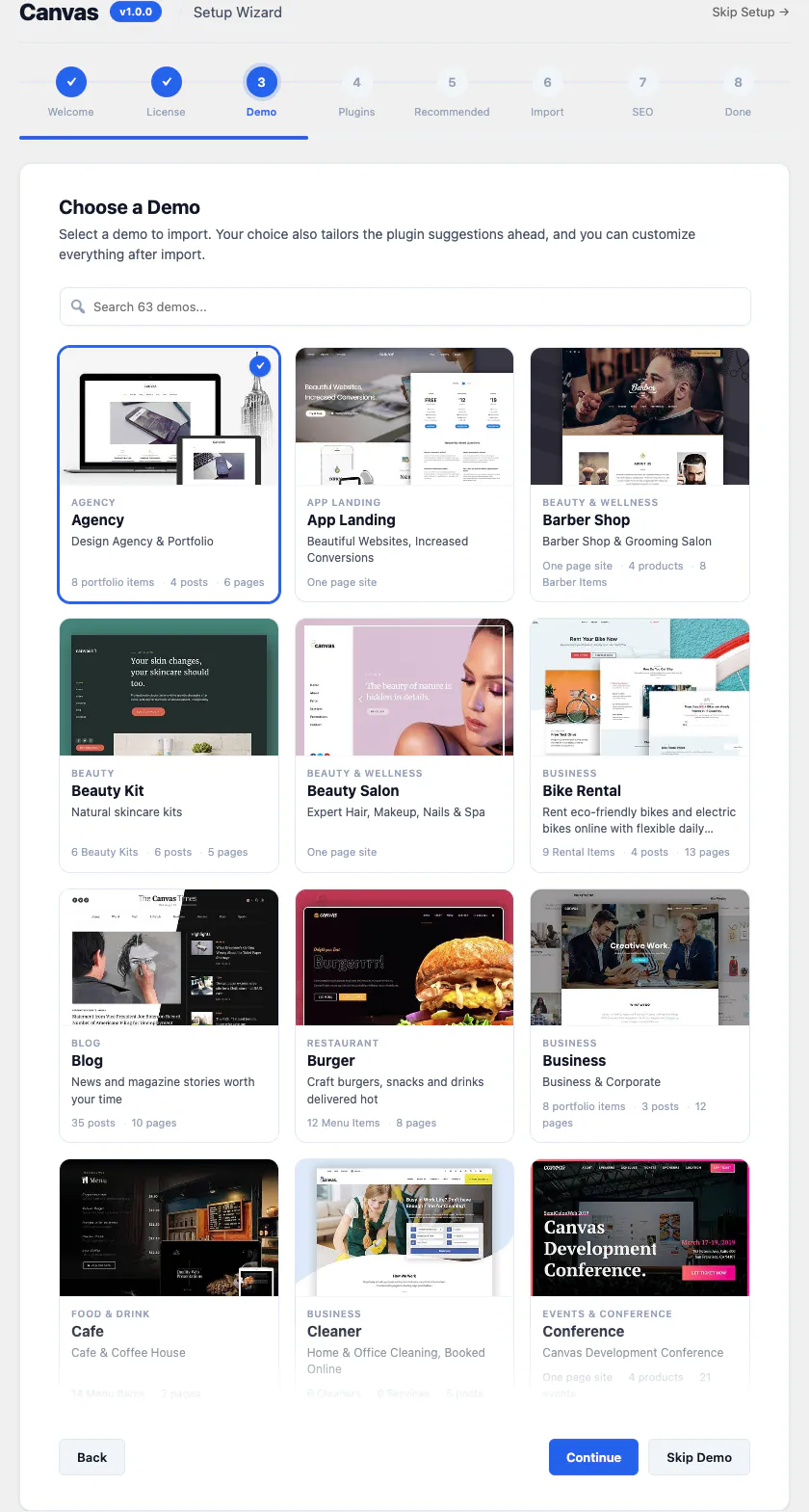
The fastest first draft is somebody else's finished website. There are 80 demo websites in 16 categories, all of them included with every plan, and each one runs as a live site you can click through before you commit a client to it.
Pick it with the client in the room
Open the demos grouped by industry and let the client point at one. A live preview settles a design conversation faster than a mood board, and it is the same site they will get: every page, post, menu, form, header, footer, slider, popup and custom content type comes across, with the images sideloaded into their own media library. 75 of the 80 demos ship a working form and 19 are complete WooCommerce stores.
Choose the scope, then keep your options open
- Import site-wide on a new build and the demo Theme Options, menus and front page are adopted, so pages you add in month three still match the design you sold in month one.
- Import into an existing website instead and you get the pages you picked without touching the settings, which is the route on a site the client already runs.
- Every import is tracked, down to the posts, terms, attachments, menus and the options it replaced, so one rollback removes the demo content and restores the site as it was. Trying a second demo for the same client costs nothing.
- Mix pages from more than one demo: import one site-wide for the design, then bring individual pages in from others, and the borrowed pages adopt the design you chose.
The photography in the demos is licensed for demonstration, not as a stock library. Replace it with the client's own images, or images they have licensed, before the site goes live.
Step 5: Edit in the block editor, so the client can too
The handover is decided here, months before it happens. Canvas is built on the block editor and the Site Editor, so pages, headers, footers, heroes and page titles are edited in the tools WordPress already ships. A page opens with the whole template drawn around your content, which means the person you train is looking at what visitors get.
Why that matters at handover
- What you save is standard WordPress block markup. There is no page builder to license, learn or renew, and no proprietary markup left in a client's database.
- Headers, footers, top bars, mega menus, side panels, page titles, heroes and sliders are records of their own, composed from 14 header blocks and edited like any other content. Assign one globally or override it on a single page.
- Animation, display conditions, custom classes, custom attributes and custom CSS are added to every block in the editor, including core blocks and blocks from other plugins, so you rarely have to swap a client's existing block for one of ours.
- The documentation runs to 382 articles with 313 screenshots generated from the shipped code, which is a better training pack than anything you would write on a Friday.
Carry a configuration to the next project
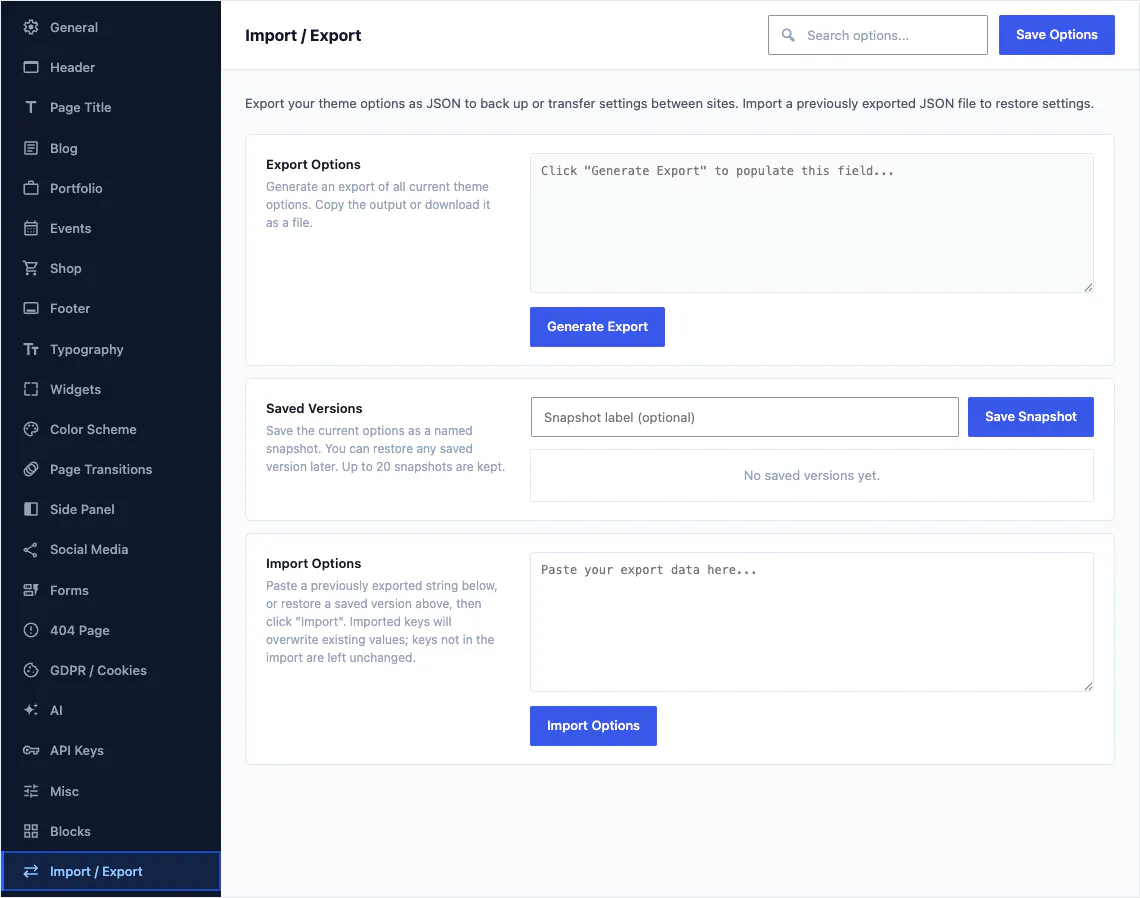
Theme Options exports as a file from one website and imports into the next, so the typography, colour and performance decisions you made for the last client save you the afternoon on this one. Saved versions snapshot a configuration before you change it, and an import overwrites only the keys it carries.
Step 6: Hand the website over and free the seat
Every client relationship ends one way or another, and the theme should not be the awkward part of it. Three things happen, and the website carries on rendering while all three do.
The client buys their own licence
If you hand a site over and stop managing it, the new owner needs a licence in their own name to keep receiving updates, demo imports and Canvas AI. A licence belongs to the account that bought it, and keys are not for sale, resale or transfer to another person or business. The client buys their own.
You release the seat
Deactivate the website from the Canvas licence screen and the seat returns to your pool immediately, so the next project can use it the same day. The same move covers a rebuild, a move from a temporary domain to the real one, or the end of a retainer.
The website does not blink
Between your deactivation and their activation the front end renders exactly as it did. The content is ordinary WordPress content, and the code is GPL, so nothing you delivered depends on a key being present.
If you would rather the client saw your brand than ours while you still manage the site, the White Label add-on is $99 a year at account level and works with any plan: your name and logo in the WordPress admin, the licence and demo screens hidden from the people you hand a site to, and the support link pointed at your own help desk. It changes appearance only, and it does not move the licence to your client.
Step 7: What a lapsed licence changes, and what it does not
This is the question a client asks in the meeting where they ask who owns the website. The answer is written down rather than left to goodwill: Canvas renders but freezes.
What keeps working
- Every page renders exactly as it did, including premium blocks.
- Headers, footers, page titles, sliders and popups keep rendering.
- Demos imported before the lapse stay in place, with their content and their settings.
- Nothing is hidden from visitors, and no watermark or notice is added to the pages.
What pauses
- Theme and plugin updates.
- Downloading and importing demo packages.
- Canvas AI text and image generation.
- Inserting and editing premium blocks in the editor, though existing ones stay on the page.
Renew and all of it returns, because nothing is lost while a licence is lapsed. A licence check that cannot reach our servers is given 14 days of grace first, so a network problem at either end changes nothing.
The one case that is different
An installation that has never held a licence behaves differently from a lapsed one. Until a key is activated there, premium blocks render a notice that only signed-in administrators can see, so a visitor is never shown an upsell mid page. Free-tier blocks, and everything accessibility, security or data export related, always render. Activate a key and the premium blocks come back in place.
A refund works the same way from the site's point of view: the key is deactivated and its seats are released, the service stops, and the pages, posts, menus, forms and media stay in the client's database as ordinary WordPress content.
Where to go from here
Two guides about the parts of client work that are easy to get wrong, and the page for agencies.
Common questions
The full FAQ answers the rest, and the documentation covers every setting in detail.
How many client websites can one licence cover?
Starter activates 3 websites, Pro activates 10 and Agency activates 100, with Agency adding activation of a whole WordPress multisite network. Websites you build and manage for clients count towards the limit like any of your own, so the number that matters is how many sites have Canvas activated at once.
Do I need a separate key for every client site?
No. The key identifies your account to our servers and records which sites are using it, so you enter the same key on each installation and each one takes a seat. One activation covers both the theme and the plugin, so a site never needs two keys. What is not allowed is sharing, publishing, reselling or sublicensing the key, or activating it on websites you neither build nor manage in order to avoid a larger plan.
Does a staging or local copy use a seat?
No. Staging, development and local copies of a website you have licensed do not use another seat, so testing an update before it reaches a client's visitors costs nothing. If a copy is counted by mistake, deactivate it on that copy's Canvas licence screen and the seat returns.
What does the client have to buy at handover?
Their own licence, if they want to keep receiving updates, demo imports and Canvas AI. A licence belongs to the account that bought it and keys are not for sale, resale or transfer to another person or business. You deactivate the site from your side and the seat returns to your pool immediately. The website keeps rendering throughout, so nothing about the handover is visible to visitors.
What happens to a client site if the licence lapses?
It renders. Every page renders exactly as it did, premium blocks included, headers, footers, page titles, sliders and popups keep working, imported demos stay in place with their content and settings, and nothing is hidden from visitors. Theme and plugin updates, demo downloads and imports, Canvas AI and the inserting and editing of premium blocks pause until somebody renews, and a check that cannot reach our servers is given 14 days of grace before anything changes.
Build your next website with Canvas
Beginner, freelancer or agency, you get the same blocks, the same demos and the same support. Start with one site and add more when you need them.