

How to choose a WordPress theme for a business
Most articles on this question are lists of themes. This one is a checklist that works on any of them, ours included: what to open, what to count and what to get in writing, in the order that saves the most time later.
Check 1: Is the demo a whole site, or a home page?
The image in a listing is nearly always a home page, and a home page is the easiest part of a website to design. What you are buying is everything behind it.
Click every item in the menu
Open the live preview and work through the navigation one item at a time. Count two things as you go: the links that open a page somebody designed, and the links that go nowhere, repeat the home page or land on a placeholder. The ratio between those two numbers is the most useful figure you will gather all day, and nobody publishes it for you.
Open the pages nobody photographs
- A single blog post, and the blog archive it sits in.
- An archive or category listing for whatever the business sells.
- The contact page, the search results page and the 404 page.
- The same four on a real phone, held in one hand.
Count the forms
A contact form is the thing a demo screenshot implies most often and ships least often. Find the form, look at whether it is styled like the rest of the design, and submit it if the preview allows. Then ask whether the form comes with the theme or with a plugin you are expected to buy separately.
Read the count in the claim
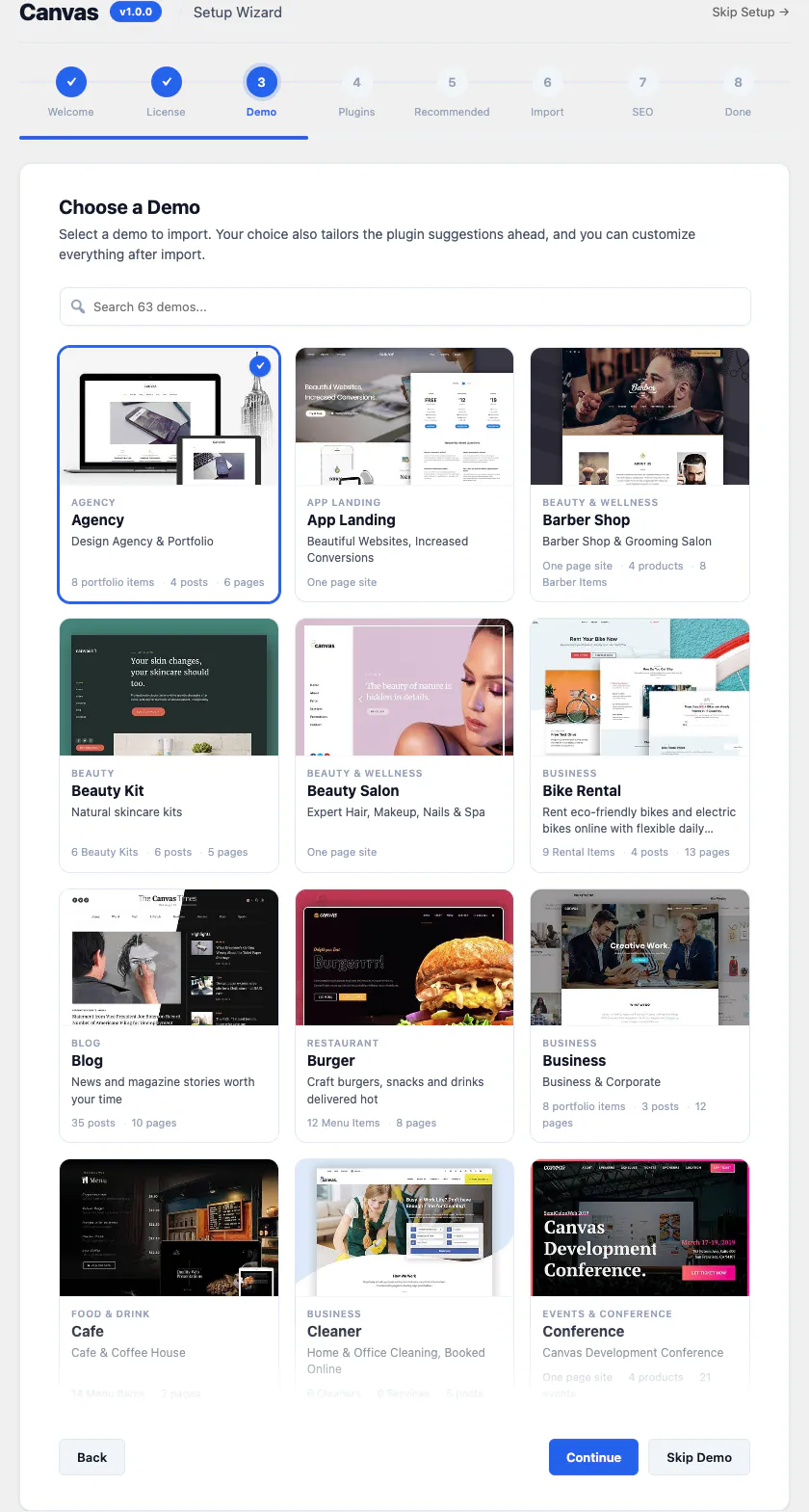
"40 demos" can mean 40 home pages, 40 inner page layouts or 40 complete websites. Ask which, and ask what arrives when you import one: only pages, or menus, forms, header, footer, images and settings as well.
For Canvas, the answer is on the record: a demo is a whole prebuilt website, inner pages included, there are 80 of them across 16 categories, and every plan includes every one. Each catalogue card carries its page count and the content types it brings. 75 of the 80 ship a working form and 19 are complete WooCommerce stores. Every demo also runs as a live website with its inner pages, archives and forms in place, so you can run the test above on us before spending anything.
Do the click test on a phone as well as a laptop. A design that holds together at 1440 pixels and falls apart at 390 is a design you will be repairing in the evenings.
Check 2: Where your pages live after you build them
Every layout tool saves your page in a format, and that format decides how much of your work survives a change of mind. People usually discover this at the worst possible moment, so ask early.
Page builder markup
A page builder stores a layout in its own structure: a shortcode, a serialised blob of settings, or JSON in the post meta. While the plugin is active the page renders correctly. Deactivate it and the same page shows raw shortcodes or nothing at all, because nothing else reads that format. Moving away is a manual rebuild rather than a conversion.
Block markup
The block editor saves plain HTML with structured comments around it. Open a post in the code view and read it. Switch to a different block theme and core blocks keep rendering, because WordPress itself renders them. That is a property of the storage format, not a marketing claim.
How to check before you pay
- Build one page in a trial or on a staging copy, then open it in the editor's code view. If you can read the page as HTML, you are looking at block markup. If you see a shortcode or a wall of encoded settings, you are looking at a format only that plugin reads.
- Then run the harder test. Duplicate the site, switch to a default WordPress theme, deactivate the layout plugin and open three pages. Whatever you see is the real cost of leaving, and it is better to learn it now than in year three.
Be even handed about the limit. Any block library you install is code you now depend on, ours included. What differs is the size of the hole it leaves: removing a block library leaves the sections that used its blocks unrendered, while removing a builder leaves the whole page unrendered. Canvas saves standard WordPress block markup, and its blocks come from the Canvas Core plugin, so changing theme leaves them where they are.
Check 3: What the licence actually covers
Licensing is the part of this decision with the least published information and the largest consequences. Seven questions, and the answers belong in public on the vendor's own website, long before you have to email anybody.
- How many websites does one licence cover, and what counts as a website?
- Do staging, development and local copies use a seat?
- Are sites you build for clients allowed on your licence?
- What does the renewal cost, and is the first year discounted into a higher figure later?
- What happens on the day the licence expires: does the site keep rendering, or do parts of it stop?
- Is there a refund window, and does it cover renewals as well as first purchases?
- Is the code GPL, and is any of it obfuscated or set to stop working on a date?
The Canvas answers
- Sites. Starter covers 3 websites, Pro 10 and Agency 100 plus multisite network activation. A site is one WordPress installation on one domain.
- Staging. Staging, development and local copies of a site you have licensed do not use another seat.
- Client work. Sites you build and manage for clients count like any other site. Hand one over and the new owner needs their own licence for updates, demo imports and AI, while the site itself keeps rendering either way.
- Renewal. The same price you paid the first time, once a year. There is no lifetime plan.
- Expiry. Every page keeps rendering, premium blocks included, and nothing is hidden from visitors. Updates, new demo imports, AI and editing of premium blocks pause until you renew, with a 14-day grace period if a check cannot reach our servers.
- Refund. 7 days from a first purchase, no questions asked. Renewals and upgrades are not refundable.
- Code. The theme and the plugin are GPL v2 or later, with nothing obfuscated and nothing set to expire.
Get the expiry answer in writing whoever you buy from. A theme that conceals sections of a live page when a licence lapses is a different product from one that keeps rendering and pauses the service around it, and both are sold with the same words on a pricing table.
Vendors answer that question differently, and our comparisons quote each one from its own website with the date it was read. The Astra comparison records what Astra says stops when a licence lapses, and Canvas against Kadence sets out what Kadence's terms allow after an order expires.
Check 4: Can you edit the header, footer and menus without code?
Most regret about a theme is about these three things. The home page arrived with the demo and you liked it. The header is what you change in week one, and the footer is what you change every time a phone number or an opening time moves.
Five edits to try before you buy
- Replace the logo, and set a different one for the phone header.
- Add an item to the main menu, then add a second level under it.
- Make the header stick to the top of the window on scroll.
- Change the number of footer columns and the text in the copyright bar.
- Put a phone number and an address in a bar above the header.
If the documentation answers any of those with a PHP snippet or a custom CSS rule, that is your answer, and you should price in a developer. Ask two follow-ups as well: where do these settings live, and what can be overridden on a single page? A transparent header on the home page only is a routine requirement, and plenty of themes have no way to express it.
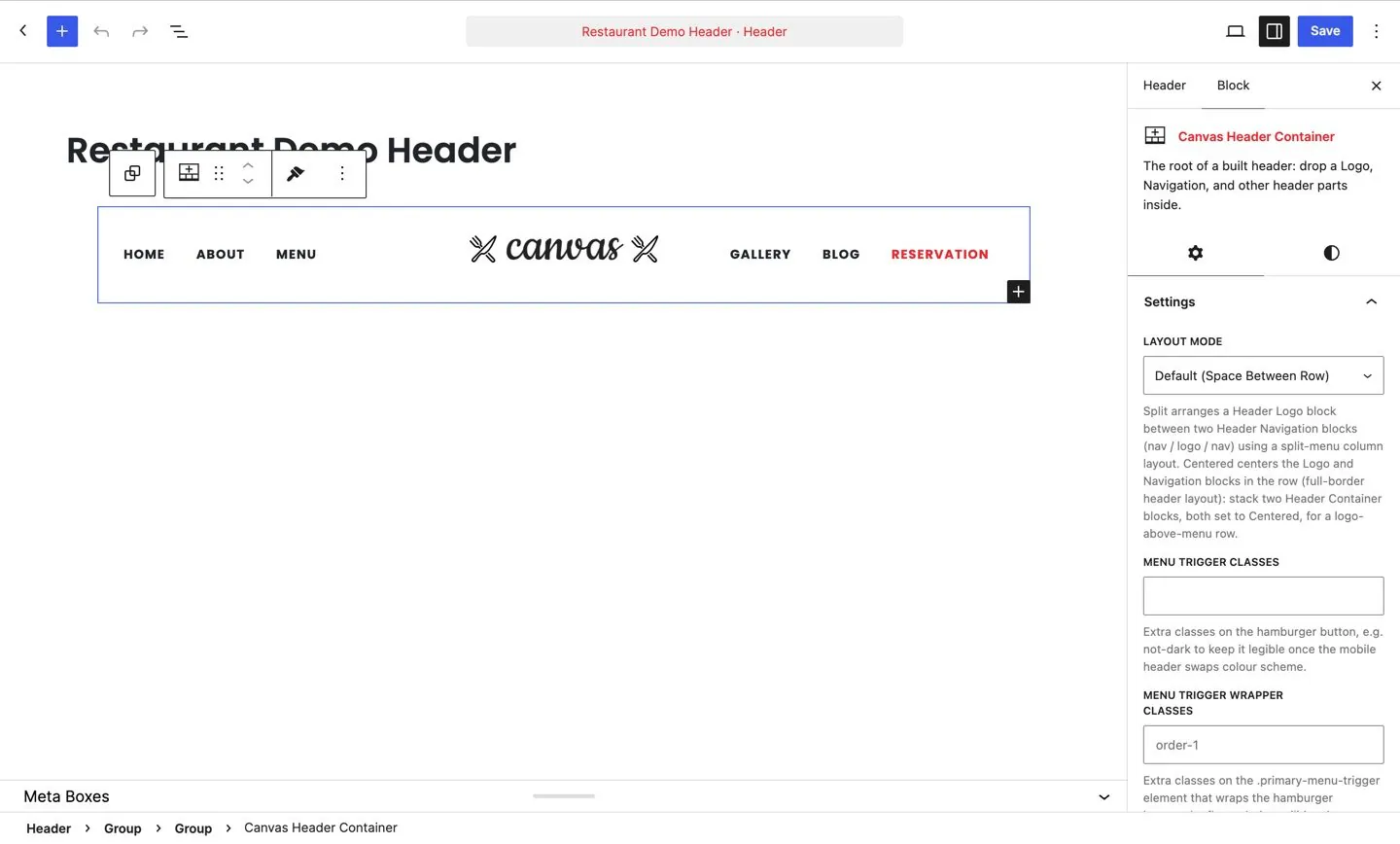
In Canvas, headers, footers, top bars, mega menus, side panels and page titles are records you build from blocks and assign either site-wide or to one page. There are 14 header blocks and 92 header options, and Theme Options carries 460 fields across 22 sections. Pages open in the editor with the whole template rendered around your content, so what you edit is what a visitor gets, and everything a visitor sees is a control in a settings panel.
Check 5: Accessibility and speed, tested in your own browser
Both of these get asserted on sales pages and both can be checked by you, on the vendor's own demo, in about fifteen minutes.
Accessibility, in ten minutes
- Press Tab from the top of the page. A skip link should appear first, and a visible focus ring should then move through the page in an order that matches the layout.
- Open the menu with the keyboard alone, including a submenu, and close it with Escape. Menus that only respond to a mouse hover exclude a real proportion of visitors.
- Zoom the browser to 200 per cent and check that nothing is cut off, overlapped or scrolling sideways.
- Run a free accessibility extension on the home page and then on an inner page. Inner pages usually score worse, which is why they are the ones to test.
- Ask whether accessibility is tiered. If any of it sits behind a higher plan, or stops when a licence lapses, that is worth knowing before you buy.
Speed, measured honestly
- Open the browser's network panel on the demo and look at the total transferred and the number of requests on a page that is mostly text. A text page pulling a slider script and a shop stylesheet tells you how assets are loaded.
- Run a page speed test on the demo URL, then remember what you measured: the vendor's hosting, not yours. Your host, your images, your fonts and your other plugins matter as much as the theme does.
- Ask the mechanical question instead. Does a page load the CSS and JavaScript of every component the product ships, or only of the ones that page actually uses?
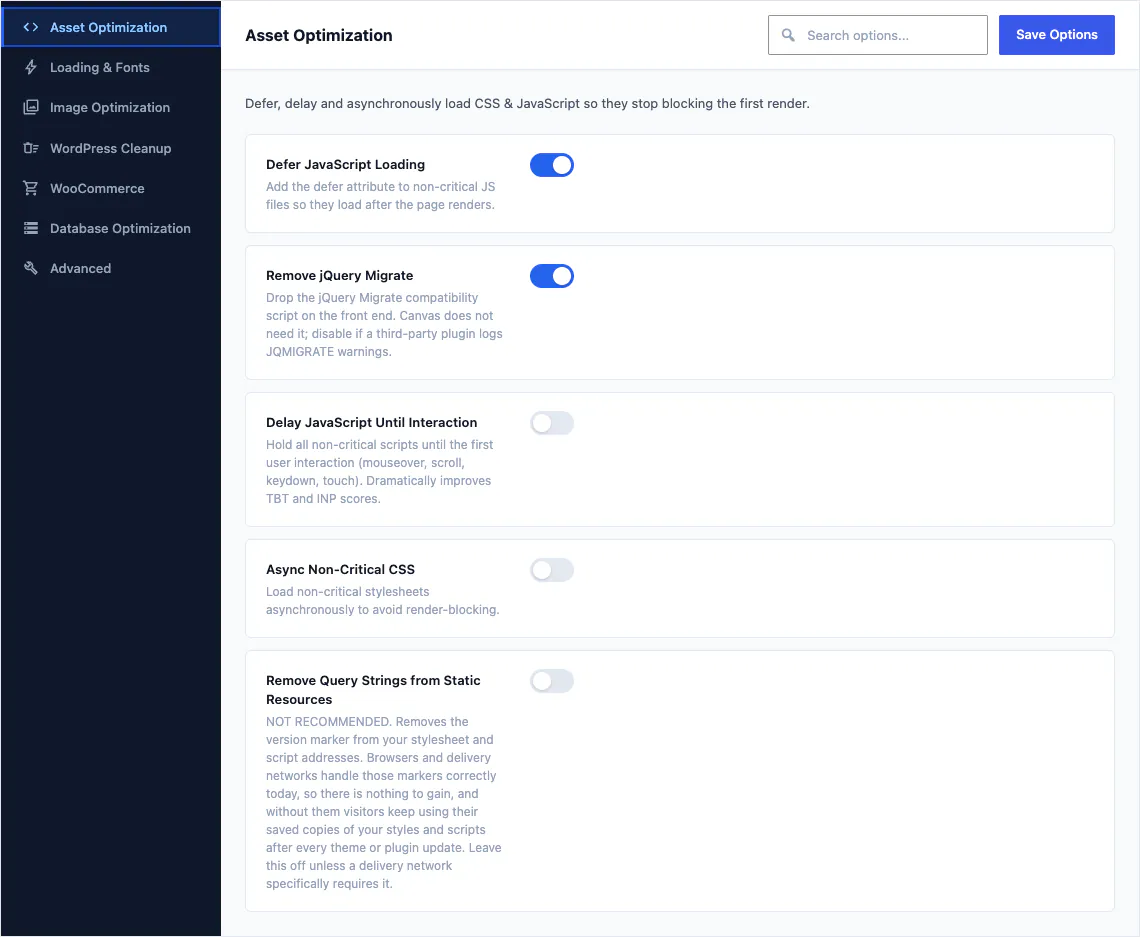
Canvas ships header, navigation, main and footer landmarks, a skip link to the content, headings that follow their order and visible focus on everything you reach with Tab. Menus, mega menus, side panels and modals open, move and close from the keyboard, and motion respects a visitor's reduced-motion setting. Accessibility, security and data export are never premium features and stay available on an expired licence. On speed, a page enqueues only the CSS and JavaScript of the blocks it contains, with 35 further optimisations, each with a switch of its own.
The honest caveat belongs here too: no category of product is automatically fast. A carefully built page in a good builder will beat a careless page in a block theme. Measure your own pages once they exist. A screenshot from either side proves nothing.
Check 6: If you sell, walk the whole shop
A store is where a theme's design either holds or gives up. Home pages are straightforward. A product with three options, a cart with a coupon field and a checkout on a phone are not.
- Walk the whole path on the demo: shop listing, a product with options, add to cart, view cart, begin checkout, and the account page. Do it once on a laptop and once on a phone.
- Check where the design stops. Plenty of themes style the product grid and leave the cart and checkout looking like a different website.
- Ask whether the store templates are included in the plan you are pricing, or sold as a separate add-on.
- Ask what happens to the shop pages you have when you import a demo. Waking up with two checkout pages is a real outcome.
Canvas ships 22 WooCommerce blocks covering the product page, the shop grid, the cart and the checkout, along with colour swatches, add to cart without a page reload and 18 store templates. 19 of the 80 demos are complete stores with products and checkout already in place, and an import adopts the shop, cart, checkout and account pages your site has, leaving you one set of them.
What a theme is not
Be as careful in the other direction. A theme is a design layer. Appointment scheduling, online ordering, a booking engine, an MLS or IDX property feed and a CRM are plugin territory whoever sells you the theme. If a demo shows a booking calendar or a table reservation, ask which plugin draws it, whether that plugin is free, and whether it is included in the price you are being quoted.
Check 7: Support, documentation and update cadence
You are buying a relationship with a maintenance schedule, and all of it is public before you pay.
- Read the changelog before the sales page. The dates tell you whether the product is maintained. A twelve month gap, or no changelog at all, is the finding.
- Open the documentation and check it matches the version being sold: current screenshots, a date on the article, and coverage of the settings, down to the ones no sales page mentions.
- Find where support happens, who answers, and whether it requires an active licence.
- Check the stated requirements, including which WordPress version the product is tested against. A theme untested on the current WordPress is a theme you will be testing.
- Ask how updates arrive: through the WordPress updates screen, or as a manual download you have to remember to fetch.
- Ask what happens to your customisations when an update touches a template you edited.
For Canvas: updates appear on the normal WordPress updates screen once your licence is active, patch releases can install automatically if you turn that on, and if a release changes a template you customised in the Site Editor, Canvas names that template afterwards, so the two are easy to compare. New demos ship every two weeks. The documentation is 382 articles with 313 screenshots generated from the shipped code. Canvas needs WordPress 6.8 or newer and PHP 7.4 or newer, and is tested up to WordPress 7.1.
Check 8: When a free theme or a page builder is the better answer
A buying guide that finds nothing good outside its own product is an advertisement. Three cases where you should not buy a multipurpose premium theme at all.
- A free theme from the WordPress.org directory. If your site is a handful of pages, a blog, or one page with a contact form, you do not need dozens of demo websites or a header builder. Free themes rank alongside paid ones on plenty of searches for a reason, and the money is often better spent on photography and copywriting. The paid argument is scope, support and maintenance pace, not quality by definition.
- A page builder plugin. Dragging an element anywhere and nudging it by a pixel is still smoother in a mature builder, and if your team, your client or the freelancer you hire on Fridays has built in one for five years, that fluency is worth real money. Switching tools spends it.
- A hosted website builder. If you never want to think about updates, hosting or plugins, and you accept that the site lives on somebody else's platform under their terms, that trade is a legitimate one to make.
What none of these three changes is the rest of this checklist. A free theme still raises the maintenance question: what happens when its author stops updating it. A hosted builder still raises the exit question: what leaves with you if you go. Ask them of every option, not only the ones with a price on them.
Check 9: The checklist in one page
Take this to any product page, ours included. Most of it is free, and none of it requires you to buy first.
- Open the live demo and click every menu item. Count the pages that are genuinely designed.
- Open a blog post, an archive, the contact page and the 404 page.
- Count the forms, and submit one if the preview lets you.
- Repeat the first three on a phone.
- Ask what the demo count counts: home pages, layouts or complete websites.
- Ask what an import brings: pages only, or menus, forms, header, footer, images and settings.
- Build one page yourself and look at how it is stored, before you have twenty of them.
- On a staging copy, switch theme and deactivate the layout plugin, then open three pages.
- Get the site count, the definition of a site and the staging rule in writing.
- Get the renewal price and the expiry behaviour in writing.
- Check the refund window and whether it covers renewals.
- Change a logo, a menu item and a footer column without opening a file.
- Tab through the demo, zoom to 200 per cent and run an accessibility extension on an inner page.
- If you sell, walk shop, product, cart and checkout on a phone.
- Read the changelog dates and check the documentation against the current version.
- Ask which plugin draws anything the demo shows that a theme cannot do by itself.
Sixteen checks, and most of them cost nothing but an afternoon. If a product survives them, price becomes the last question rather than the first. Several of them can be run on this website today: the 80 Canvas demos are live sites you can click through page by page, the licence terms are written out clause by clause, the changelog carries dates, and a first purchase is refundable for 7 days if the rest of it does not survive contact with your own project.
Where to go from here
Two guides that take the comparison further, and the comparisons themselves.
Common questions
The full FAQ answers the rest, and the documentation covers every setting in detail.
What is the one test worth doing first?
Open the live demo you are attracted to and click every item in its menu. Count the links that open a designed page and the links that go nowhere, repeat the home page or land on a placeholder. That single count separates a complete website from a home page with a menu drawn on it, and you pay for it in ten minutes.
Is a paid theme worth it when free themes exist?
Often not, and it is worth being honest about that. If your site is a handful of pages, a blog or one page with a contact form, a free theme from the WordPress.org directory will do the job, and the money goes further on photography. What a paid theme buys is scope, support and a maintenance pace you can check: more finished designs to start from, a support desk with a person behind it, and updates that follow new WordPress releases. Buy it for those, not because paid implies better.
What happens to a business website if I stop paying for the theme?
That depends entirely on the vendor, and it is the question most likely to be missing from a pricing table, so get the answer in writing before you buy. Some products hide or disable sections of a live page when a licence lapses. Canvas does not: every page keeps rendering exactly as it did, premium blocks included, and what pauses is the service around it, meaning updates, new demo imports, AI generation and editing of premium blocks. If a routine licence check cannot reach our servers, Canvas carries on as normal for 14 days before treating the licence as lapsed.
Can I change theme later without rebuilding every page?
It depends on the format your pages were saved in, not on the theme you move to. Content saved as standard WordPress block markup is HTML with structured comments that WordPress itself reads, so core blocks keep rendering under a different theme. Content saved in a page builder's own format is read by that plugin and nothing else, so moving away is usually a manual rebuild page by page. Canvas saves standard block markup, and its own blocks live in the Canvas Core plugin, so changing theme leaves them in your posts and pages.
How many demo websites does a business actually need?
One that fits. A count on a sales page is a weak signal, because "40 demos" can mean 40 home pages, 40 inner page layouts or 40 complete websites, and the three are not comparable. Ask what an import brings and whether the inner pages exist. Canvas ships 80 complete demo websites in 16 categories, every plan includes every one of them, and each catalogue card carries its page count, so you check the claim before you pay.
Build your next website with Canvas
Beginner, freelancer or agency, you get the same blocks, the same demos and the same support. Start with one site and add more when you need them.